OBJECTIVE: In Flash MX we will script a movie clip on the X and Y axis and use a
condition to keep the movie clip on the stage.
1. Open your Flash Coin Movie from the last tutorial. We have 2
variables that cycle through a set of numbers and begins again. Now we can set
the _x property and _y property according to that variable.
2. Click in frame 2 of the main timeline actions layer. Click on the bottom
line of the script to be able to add a script to the following line. In this
tutorial we will use the shorthand for set property. It is written in a set
variable statement. You write the statement in the following form:
pathtothetarget.target.property = value
Click
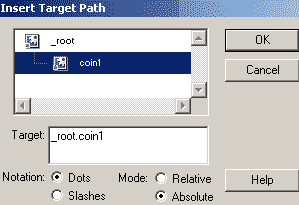
Action=> Variables=> Set Variable. Click in the variable field and hit your
target button. Find your coin1. Set it to dot formula and absolute pathway.
you will see _root.coin1 appear in the variable field. Add a period and then
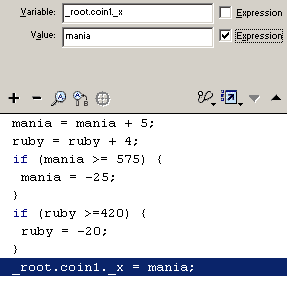
add the property for _x so the variable appears as
_root.coin1._x.
Click in the value field. Type in the variable mania and check expression
so it will be evaluated. 3.
Click on the full script line in the actions panel. Right click and select
copy. Right click again and select paste. Edit this script so that the
property that is being changed is _y and the value is ruby.
4. test your movie. You will see that the coin moves across the screen.
When it gets to the right or bottom edge. it appears on the opposite side, or
the value is reset the the other side of the range.
Congratulations on a job well done! Next
tutorial is setting some button actions to control position of the coin.






 Click
Action=> Variables=> Set Variable. Click in the variable field and hit your
target button. Find your coin1. Set it to dot formula and absolute pathway.
you will see _root.coin1 appear in the variable field. Add a period and then
add the property for _x so the variable appears as
Click
Action=> Variables=> Set Variable. Click in the variable field and hit your
target button. Find your coin1. Set it to dot formula and absolute pathway.
you will see _root.coin1 appear in the variable field. Add a period and then
add the property for _x so the variable appears as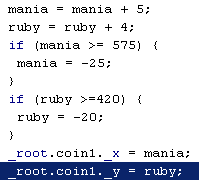 3.
Click on the full script line in the actions panel. Right click and select
copy. Right click again and select paste. Edit this script so that the
property that is being changed is _y and the value is ruby.
3.
Click on the full script line in the actions panel. Right click and select
copy. Right click again and select paste. Edit this script so that the
property that is being changed is _y and the value is ruby.