Coin Project 5: Creating an On Click Event That Adds to Score
This tutorial is part 5 in a series coin tutorials starting with
this tutorial
1. Open your coin movie. We no longer need the text boxes to monitor the
Ruby and Mania variables. Lock all layers but your text layer. Use the arrow
tool to highlight the contents of the text layer and delete it off the
stage.
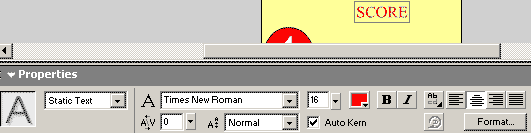
2. Select the type tool. Click on the stage and type in the word
SCORE. Select the move tool and set the type to static, times new rooman, 16
pt, red.
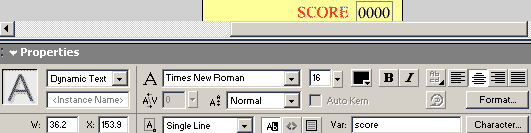
3. Click on the stage to the right of the word score. Type in the number
0000. Select your m ove tool, and adjust your text properties to say Dynamic
text, Times New Roman, 16 pt, black. Set the VAR to score. lock your text
layer.
4.
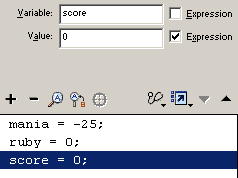
Click on frame 1. Select your last script on frame 1 in the action panel. We
need to initialize the variable score. Click Actions=> variables=> set
variable. Set the variable to srore, the value to 0 and check expression.
5.
Now to script the score. Unlock your coin layer. Double click on the coin to
open the coin1 movie. On the coin1 movie clip timeline, click on the coin
button. Now to add a script to the button. Open the action panel. Click
action=>variables=> set variable. The cariable is on the main stage so in
the variable field we type the path to the variable <dot> variable.or _root.score.
For the value, type in the previous value for score, and add 1, or _root.score
+ 1. Check expression.
6. Test your movie. Clicking the coin will now change the score in
the score box by increasing the value by 1 with each click.
Next tutorial will show you how to make your movie clip change appearance
when you click it.






 4.
Click on frame 1. Select your last script on frame 1 in the action panel. We
need to initialize the variable score. Click Actions=> variables=> set
variable. Set the variable to srore, the value to 0 and check expression.
4.
Click on frame 1. Select your last script on frame 1 in the action panel. We
need to initialize the variable score. Click Actions=> variables=> set
variable. Set the variable to srore, the value to 0 and check expression.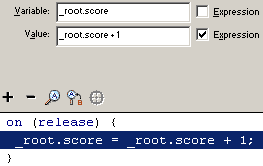 5.
Now to script the score. Unlock your coin layer. Double click on the coin to
open the coin1 movie. On the coin1 movie clip timeline, click on the coin
button. Now to add a script to the button. Open the action panel. Click
action=>variables=> set variable. The cariable is on the main stage so in
the variable field we type the path to the variable <dot> variable.or _root.score.
For the value, type in the previous value for score, and add 1, or _root.score
+ 1. Check expression.
5.
Now to script the score. Unlock your coin layer. Double click on the coin to
open the coin1 movie. On the coin1 movie clip timeline, click on the coin
button. Now to add a script to the button. Open the action panel. Click
action=>variables=> set variable. The cariable is on the main stage so in
the variable field we type the path to the variable <dot> variable.or _root.score.
For the value, type in the previous value for score, and add 1, or _root.score
+ 1. Check expression.