Preview what the movie
should look like after this tutorial is done.
1. Open your results of part 1 of the haunted house.
2.
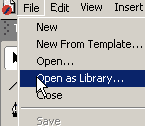
Click file => open as library. Browse your hard drive for the
fourbats.fla file you downloaded.
3. Click Insert=> New Symbol. Call the symbol bats. and set it
to the behavior of a movie clip.
4.
Select your arrow tool. Drag a copy of each bat out onto the center of
the stage inside the symbol. Select all the bat son the stage. Use the
align tool to align the horizontal centers and vertical centers.
5.
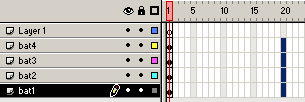
Click Modify=> Distribute to layers. You now have an empty layer 1 and
Layers bat1, bat2, bat3, bat4. Click drag to highlight frame 20 of the
symbol layers. Hit your F6 key to insert new duplicate keyframe in frame
20.
6.
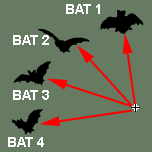
Deselect all the bats on the stage by clicking somewhere else. On frame
20, Click on the top bat. Move it as far away as you can from the
group or centerpoint. Do the same with all the bats, placing bat 1 up
top, bat 2 at 11 o'clock, bat 3 at 10 o'clock, and bat 4 at 9 o'clock
Placing the bats in order around the center point from where they came
from. Lock the 4 bat layers.
7. Move your playhead back to frame 1.
Click on layer 1 frame 1. Drag out a copy of each bat out to the stage
from your movie library, as they should be in there now. Select the the
four bats. Center them to stage again using the align panel.. While they
are all highlighted, click modify=> transform=> flip horizontal.
8.
Click Modify=> Distribute to layers. You now have an empty layer 1 and
Layers bat1, bat2, bat3, bat4. Click drag to highlight frame 20 of the
symbol layers. Hit your F6 key to insert new duplicate keyframe in frame
20.
9.
Deselect all the bats on the stage by clicking somewhere else. On frame
20, Click on the top bat. Move it as far away as you can from the
group or centerpoint. Do the same with all the bats, placing bat 1 up
top, bat 2 at 1 o'clock, bat 3 at 2 o'clock, and bat 4 at 3 o'clock
Placing the bats in order around the center point from where they came
from.
10. Unlock all the layers by clicking the lock at the top of the lock
column twice. Move the playhead back to frame1. Use your arrow tool to
marquee around all the bats in frame 1 by clicking above and to the left
of all the bats and dragging down and to the right on the stage.
11.
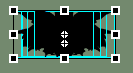
Select the transform tool, and set the option to scale. While holding
your shift key, Drag the lower right corner up to the upper right corner
without meeting it. Change your tool back to the arrow tool and
drag the group back to the center of the symbol clock and turn all
layers off.
12.
Turn the eye on On the bottom layer, bats 1 and unlock. Click the button
on the bottom of the layers palette to add a a motion guide. This will
add a motion guide above the layer.
13. Click in frame 20 of the guide bat1 layer. Use the pencil set to
smooth options with property hairline stroke to draw a wiggly line from
below the center of the symbol to the bat1 and beyond. Lock the guide
layer.
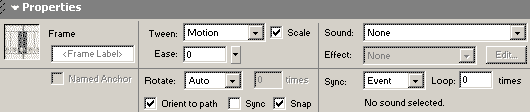
14. Click on the bats1 layer, frame1. Set the frame properties
for tween to
motion
Snap -- so it follows the line.
Orient to path -- so it turns as it curves so that it is always
traveling forward.
"Scrub" the timeline by running your cursor across the number part of
the timeline to make sure the bats follow the guide. If they do not,
use your arrow tool to drag them away from the line on either keyframe
and then back again to the line. Also, make sure that snap is on in
the view menu uptop. Lock the bottom bat1 layer.
15. Do the
same from each of the other bat layers, so that each has its own
motion guide and each follows its own path.
16.
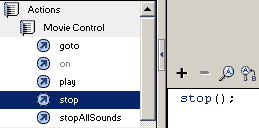
After all your motion guides are done, click in the top layer called
layer1. Rename layer 1 "actions". Click in frame 1 of layer 1 and open
your actions panel. Click actions=> movie control=> stop to add a stop
to frame 1 of the actions layer.
17. Click back to scene 1. Drag a
copy of bats from the library to the stage and position it at the top
of your left chimney. Open the properties inspector and while the bats
symbol is highlighted, set the instance name to bats 1. Drag out
another copy of bats to the right chimney and set the instance name to
bats 2.
18. Click insert=> new symbol. Call the symbol hotspot and
give it the properties of a button. Click in the hit frame of the
button timeline and hit F7. Use your oval tool to draw a filled circle
of any color in the hit frame only. Click back on your main scene.
19. Drag a copy of hotspot button onto the stage and position it over
the bats1 instance. Resize it as needed.
20.
With the first hotspot instance highlighted, open your action panel.
Click objects=> movie=> Movie Clip=> Methods=> Play. Click in the box
where it says object. Click the target button and find your bats1 under
the root. and click ok. On your actions panel, select the first line
which says on(release) to view the events available. Uncheck release and
check rollover.
21. Add bats to the other chimneys and roof peaks, giving each a
different instance name. Add hotspots and script with the same script,
finding the correct target from the target box.
Test your movie. Save it and your ready for skeletons, part 3.






 2.
Click file => open as library. Browse your hard drive for the
fourbats.fla file you downloaded.
2.
Click file => open as library. Browse your hard drive for the
fourbats.fla file you downloaded.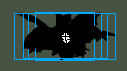 4.
Select your arrow tool. Drag a copy of each bat out onto the center of
the stage inside the symbol. Select all the bat son the stage. Use the
align tool to align the horizontal centers and vertical centers.
4.
Select your arrow tool. Drag a copy of each bat out onto the center of
the stage inside the symbol. Select all the bat son the stage. Use the
align tool to align the horizontal centers and vertical centers.
 5.
Click Modify=> Distribute to layers. You now have an empty layer 1 and
Layers bat1, bat2, bat3, bat4. Click drag to highlight frame 20 of the
symbol layers. Hit your F6 key to insert new duplicate keyframe in frame
20.
5.
Click Modify=> Distribute to layers. You now have an empty layer 1 and
Layers bat1, bat2, bat3, bat4. Click drag to highlight frame 20 of the
symbol layers. Hit your F6 key to insert new duplicate keyframe in frame
20.
 6.
Deselect all the bats on the stage by clicking somewhere else. On frame
20, Click on the top bat. Move it as far away as you can from the
group or centerpoint. Do the same with all the bats, placing bat 1 up
top, bat 2 at 11 o'clock, bat 3 at 10 o'clock, and bat 4 at 9 o'clock
Placing the bats in order around the center point from where they came
from. Lock the 4 bat layers.
6.
Deselect all the bats on the stage by clicking somewhere else. On frame
20, Click on the top bat. Move it as far away as you can from the
group or centerpoint. Do the same with all the bats, placing bat 1 up
top, bat 2 at 11 o'clock, bat 3 at 10 o'clock, and bat 4 at 9 o'clock
Placing the bats in order around the center point from where they came
from. Lock the 4 bat layers.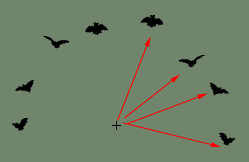 9.
Deselect all the bats on the stage by clicking somewhere else. On frame
20, Click on the top bat. Move it as far away as you can from the
group or centerpoint. Do the same with all the bats, placing bat 1 up
top, bat 2 at 1 o'clock, bat 3 at 2 o'clock, and bat 4 at 3 o'clock
Placing the bats in order around the center point from where they came
from.
9.
Deselect all the bats on the stage by clicking somewhere else. On frame
20, Click on the top bat. Move it as far away as you can from the
group or centerpoint. Do the same with all the bats, placing bat 1 up
top, bat 2 at 1 o'clock, bat 3 at 2 o'clock, and bat 4 at 3 o'clock
Placing the bats in order around the center point from where they came
from.
 11.
Select the transform tool, and set the option to scale. While holding
your shift key, Drag the lower right corner up to the upper right corner
without meeting it. Change your tool back to the arrow tool and
drag the group back to the center of the symbol clock and turn all
layers off.
11.
Select the transform tool, and set the option to scale. While holding
your shift key, Drag the lower right corner up to the upper right corner
without meeting it. Change your tool back to the arrow tool and
drag the group back to the center of the symbol clock and turn all
layers off.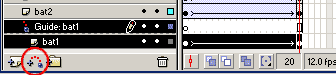 12.
Turn the eye on On the bottom layer, bats 1 and unlock. Click the button
on the bottom of the layers palette to add a a motion guide. This will
add a motion guide above the layer.
12.
Turn the eye on On the bottom layer, bats 1 and unlock. Click the button
on the bottom of the layers palette to add a a motion guide. This will
add a motion guide above the layer.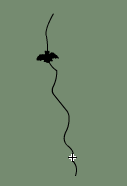
 16.
After all your motion guides are done, click in the top layer called
layer1. Rename layer 1 "actions". Click in frame 1 of layer 1 and open
your actions panel. Click actions=> movie control=> stop to add a stop
to frame 1 of the actions layer.
16.
After all your motion guides are done, click in the top layer called
layer1. Rename layer 1 "actions". Click in frame 1 of layer 1 and open
your actions panel. Click actions=> movie control=> stop to add a stop
to frame 1 of the actions layer.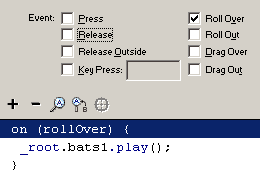 20.
With the first hotspot instance highlighted, open your action panel.
Click objects=> movie=> Movie Clip=> Methods=> Play. Click in the box
where it says object. Click the target button and find your bats1 under
the root. and click ok. On your actions panel, select the first line
which says on(release) to view the events available. Uncheck release and
check rollover.
20.
With the first hotspot instance highlighted, open your action panel.
Click objects=> movie=> Movie Clip=> Methods=> Play. Click in the box
where it says object. Click the target button and find your bats1 under
the root. and click ok. On your actions panel, select the first line
which says on(release) to view the events available. Uncheck release and
check rollover.