
|
Reminder |
| Remember to book mark
this site! |
|

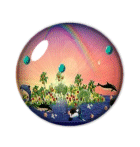
Globe tube tutorial
by Porshiana Open a file 300 x 300
 Creating
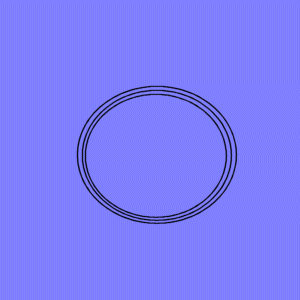
3 concentric circles Creating
3 concentric circles
- Right click in tool area Choose tool option
- Choose layer palette
- Use the bucket tool, select color as a medium/light blue and fill the paper
- Go up to layers and choose new vector layer
- choose the shape tool , choose the circle
- Now go to tool options and choose create as vector, retaining style
- Draw a circle that fits nicely in your window yet still has about 1 inch around the edges.
- Now choose new vector layer again and draw another circle. This one should be just barely slightly bigger than the first one.
Be sure to make them the exact same shape.
- Now repeat again, new vector layer; this one even slightly larger
- Now go down and choose the object select tool
- Under layers, choose layer 2 and
- click on the smallest circle
- Go under tool options and choose center to canvas.
- Choose the arrow go to selections and
- choose select none
- Go to layers and choose layer 3.
- Get the object selector and choose center to canvas.
- Select arrow,
- selections none.
- Go to layer 4.
- Click on biggest circle and center to canvas.
- Now go to layers and choose convert to raster.
- Then choose layer 3, convert to raster. And do the same for layer 2.
 Blurring
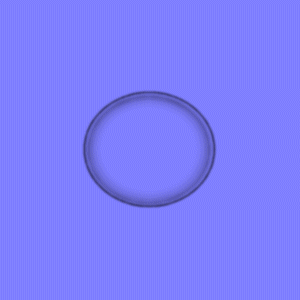
the rings together Now go to effects. choose blur and Gaussian blur. Blurring
the rings together Now go to effects. choose blur and Gaussian blur.
- set the radius to about 4
- and choose ok
- Change to the layer 3
- go to effects>blur>Gaussian
- set radius to about 2
- Treat layer 4 same thing
- go to effects>blur>Gaussian
- set radius to about 1
- Now adjust the 3 faded circles so they blend together
- choose the layer
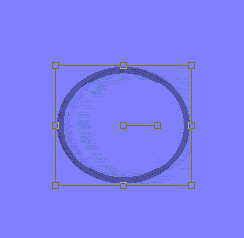
- then choose the deformation tool
- and adjust the layer
- remember after using the deformation tool to choose the arrow afterward to enable everything
The reflection Now, choose new RASTER layer
choose shape tool
- uncheck create as vector and retain style
- go to your color swatches
-
- choose gradient
- then click on your gradient and
- choose edit
- under edit, choose new name this reflection
- click on a crayon
- click on the color area, and change the color to white
- do the same for both crayons
- now go to the transparent area
- change the opacity of one crayon to 45% and the other end to 55%
then choose ok
- in your other color swatch, choose your r4eflection gradient
- go back to your picture and draw a very small circle
- choose the deformation tool and tilt it along the edge of the picture
- now go to layers and choose layer 1
- then go back and choose delete
- go to your layer palettes next to layer one; choose the glasses, to
make it invisible
- go to layers and choose merge visible
- now take the arrow key and right click on the globe
- choose copy
- click a clear area in your workspace
- and choose paste as new image
Saving as a Tube
- Go to file> export > picture tube
- cells should all say 1
- placement and selection should say random
- and step size 200
- make the name as globe
- and choose ok
- Close all open images
 and
open a new one and
open a new one
- 300x300
- fill it with any color you want
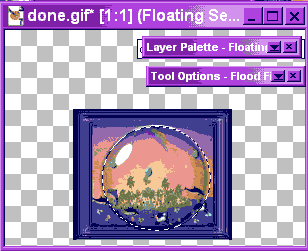
- and choose picture tube. Find globe
- change scale to 10
- and step to 500
- click on your picture and make a bubble
- click and hold and drag and make a trail of bubbles:)
|
"Building The Web Into a Nicer Place -- One Site At A Time"
Developing Webs Group Copyright © 2001-2026 All Rights Reserved
Privacy
and Legal
|
|
 |





