 Frame Tutorial Frame Tutorial
|
|
1. Create a new image 400x400 px with a transparent background
|
|
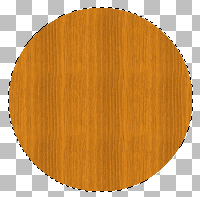 2.Draw a circle selection in the middle of the image
and flood fill with the stained wood texture, for my i rotated by 90 to
make the grain become vertical. 2.Draw a circle selection in the middle of the image
and flood fill with the stained wood texture, for my i rotated by 90 to
make the grain become vertical.
|
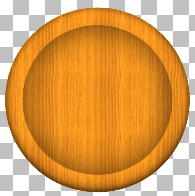
 3. nex a bevel must be added to our wood layer, Effects>>3D
Effects>>Inner bevel and use the following settings. 3. nex a bevel must be added to our wood layer, Effects>>3D
Effects>>Inner bevel and use the following settings.
|
 4.your frame should still be selected but if it
isn't
press ctrl+F then ctrl+F this will select your frame. Go to Selections>>Modify>>Contract
and set it to 35px. now add a new layer, Layers>>New Raster layer
and name it cutout. Now add the cutout effect Effects>>3D effects>>Cutout
and use these settings 4.your frame should still be selected but if it
isn't
press ctrl+F then ctrl+F this will select your frame. Go to Selections>>Modify>>Contract
and set it to 35px. now add a new layer, Layers>>New Raster layer
and name it cutout. Now add the cutout effect Effects>>3D effects>>Cutout
and use these settings
|
|
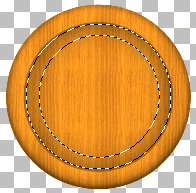 5.Now we need to create the metal ring but first contract your selection
by 5. Now select your selection tool ad set it to ellipse hold down ctrl
and then draw a smaller circle in the middle. 5.Now we need to create the metal ring but first contract your selection
by 5. Now select your selection tool ad set it to ellipse hold down ctrl
and then draw a smaller circle in the middle.
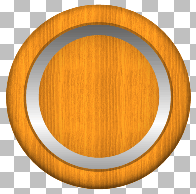 Create a new raster layer and flood fill the selection
with a metallic gradient Create a new raster layer and flood fill the selection
with a metallic gradient
|
 6. Now add an inner bevel with these settings. 6. Now add an inner bevel with these settings.
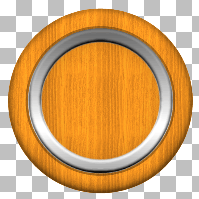 |
| 7. Now we need to add an image you can use anything
but for this tutorial i have used a landscape. first open your landscape
as a separate document, go to Geometric effects and circle. this will distort
the image and give it a raised effect when its added to our frame. to extract
it just draw a circle selection in the middle of your round area. Hit
ctrl+C to copy your selection, then return to your frame image and hit
ctrl+l. the pasted image will fill your whole image and you will have
to resize it to make it fit. |
| Done, a good idea is to add a texture to the background |






