Buttons in PSP
by Cullen_Tir

1. Go to File, Then to New

2. Set Size of your button - here I used 150 by 40-
And create using Transparent Click OK - Then do it again same size with the White color-

So that you get this
- Text ( Transparent ) Pallet will be for your texts
And the Button
Pallet will be for your button
3. Go to preset shapes-

4.
Set the preset shapes tool to rounded rectangle and line width 2-
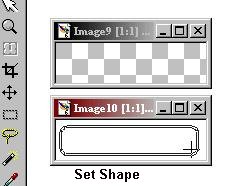
It Should look something like this
- try and set it even on all sides

5. Now Merge all layers so it is one layer-

6. Go to Image, then to Effects and
Choose Sculpture

 7. In sculpture you need only to choose a color and depth. 7. In sculpture you need only to choose a color and depth.
You should now have something like this
8. In the Transparent Pallet Set your text into it and use sculpture again on your text then copy the text and paste into the button pallet and Merge.
The use buttonize to set edge then save as.

Now for animated or Mouse over buttons
Save your button Again as a .GIF .
|






