Creating A Simple Email Form
This
tutorial walks you through creating a simple Java Script email form to your
webpage. A form consists of multiple boxes to select, check, add text
to. This form will be emailed to you upon completion.
EXAMPLE:
1. Open the
Form Generator page
by clicking this link.
2. The first part of the form will set up the
actions for the form, hence called Form Options.
- Type in the name of the form. This will be
the Subject in the email you will receive.
- Type in
Mailto:youremailaddress. I typed in mailto:me@lunacytoons.com
- The method should be POST
- Leave Target as code
- Encrypt should be text/plain
3. Click the button labeled Start Form. This
will add code to the HTML box below.
4. Now it is time to add items in the form: the
description!
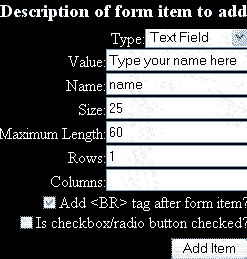 5.
The Text Field form item 5.
The Text Field form item
- A text field is where the form has a field to
be filled in.
- The Value will appear inside the text box
- The name is one word that describes this
field that will show up in the email.
- Size is the width of the text box
- Maximum length determines how long you will
allow entry to be.
- Rows indicates 1 Row, 2 rows of text etc.
- Check the box to create a line break to go to
the next line in your form.
- Click the ADD ITEM button to add this code to
your HTML box below.
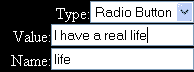 6.
The Radial Button form item 6.
The Radial Button form item
- The radial button can be used for toggling
answers.
- The value appears next to the radial button
-
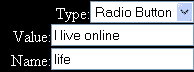 The
name indicates the form name. If you name The
name indicates the form name. If you name
several radio buttons the same name, the user
will only be able to select one of them.
-
Click the ADD ITEM
button to add this code to
your HTML box below.
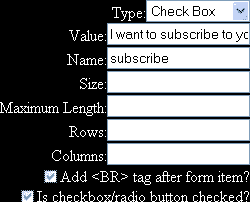 7.
The Check Box form item 7.
The Check Box form item
- Use the Check Box item where you offer the on
off feature for any number of choices.
- The Value will be the text next to the check
box
- The name should be a unique identifier for
each check box.
- Check the bottom box If you would like the
box on your form checked from the beginning.
- Click the ADD ITEM button to add this code to
your HTML box below.
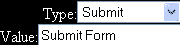 8. Add the submit button 8. Add the submit button
- Select type - SUBMIT
- Type in the value that you want on your
button
-
Click the ADD ITEM button to add this code to
your HTML box below.
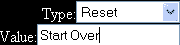 9.
Add the reset button 9.
Add the reset button
- Select type RESET
- Type in the value that you want on your
button.
-
Click the ADD ITEM button to add this code to
your HTML box below.
10. Click the button under form options to END
FORM. This will add code to the HTML box below.
11. Select and copy the code in the HTML box
12. Bring up your notepad.
13. Copy the code into the
body of your page
14. Save the notepad doc as form.html according
to the instructions here.
|





