Inserting
Flash Animation into Microsoft FrontPage.
by
civicCX
Before you even go into Microsoft FrontPage to
insert your flash, you have to make sure you save your
file as a .SWF.
You can do this in many programs by
going to Export and clicking Save as .Swf.
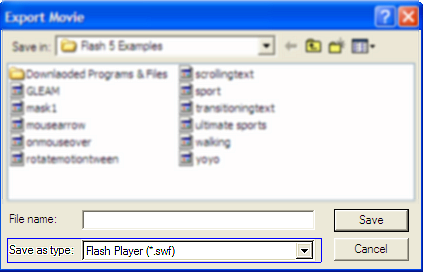
Once you have saved your flash as an .SWF you are
ready to begin importing it into Microsoft FrontPage.
Now you are ready to open up Microsoft FrontPage and insert
your flash into your website.
1) Start up Microsoft FrontPage and create a new blank
document.

2) Next go to Insert on the main menu on the top of the
screen. Scroll down to advanced and then scroll to the right and highlight
"Plug-In" and select this option.
3) Another window will then pup-up after selecting
Plug-in. Which will look like the picture shown below. Click Browse and
then search for the .SWF file which you exported earlier in this tutorial.
4) After locating and finding your .SWF file click on or
press enter.
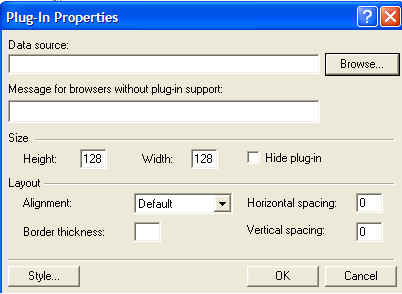
5) After selecting ok, or pressing enter you should see a plug-in
picture, and not your actual flash.
When going into the preview mode on the bottom of FrontPage 2000 you will be
able to see your Flash which you inserted into your website. You will not
be able to view your actual flash form Normal mode.

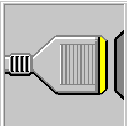
This is what the plug in symbol will look like when NOT in preview
mode. You can adjust the size of your flash plug in by clicking your
plug-in logo (as seen here) once and adjusting the handles on it.
|





