Creating Bookmarks Using Microsoft FrontPage
By:
CivicCX
Objective: To teach you how to create bookmarks using Microsoft FrontPage.
You can use one or more bookmarks to find locations on a page. For example,
add a bookmark to each main heading on a page. When you are editing the page,
you can quickly find each section by going to the corresponding bookmark.
1) Open up an empty or an existing web page on Microsoft FrontPage.
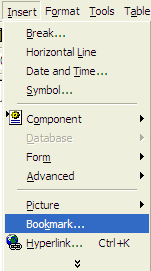
2) Now, go up to the main toolbar on the top of your screen and click
insert, and scroll down to bookmark.
3) Once Bookmark is highlighted click it once and another dialog box
will appear up on the screen.
4) Type in the name of what your header is going to be under Bookmark
name.
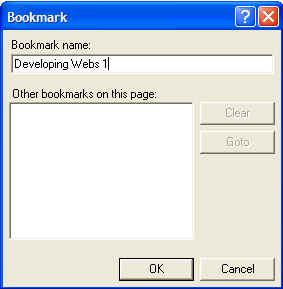
5) Press enter or click okay on your keyboard.
6) Now, you will see a little image come up on our preview
screen. (As shown below) Next to this little image type in what the header
of your bookmark is going to be.

7) Now type in any text on the TOP of your website which is going to be
linked to your bookmark. One you have typed this text in right click on
the text and a menu will pop up. Then select HYPERLINK on this menu.
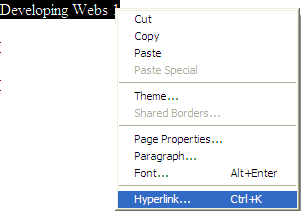
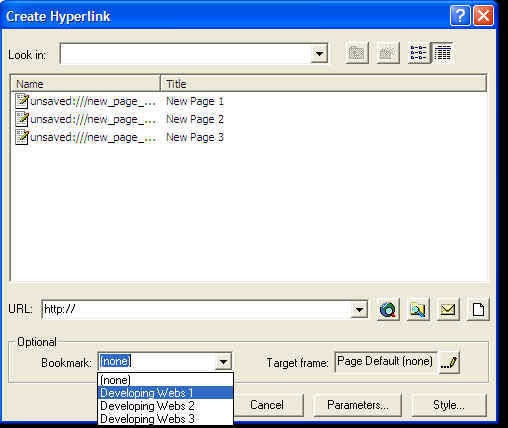
8) Now the dialog box which appears after selecting Hyperlink, on the
bottom you will see something that says Optional, and right under that Bookmark.
Select the name of the bookmark which you created earlier in the tutorial. Then
the text will now be linked to the bookmark which you made. You can view
your work by selecting Preview on the bottom of your FrontPage window.
A Finished Product look like this:
Click on One of these to be taken directly to its
bookmark.
Developing Webs 1
Developing Webs 2
Developing Webs 3
Developing Webs 1
This is an example of a book mark. When you clicked "Developing
Webs 1" on the top of this screen you were brought down to its subtitle
which is the one right above this text. This kind of page is very useful
for creating "FAQ" pages (Frequently asked questions). You can
add as many bookmarks to any type of page which you want too.
Back to Top
Developing Webs 2
This is an example of a book mark. When you clicked "Developing
Webs 2" on the top of this screen you were brought down to its subtitle
which is the one right above this text. This kind of page is very useful
for creating "FAQ" pages (Frequently asked questions). You can
add as many bookmarks to any type of page which you want too.
Back to Top
Developing Webs 3
This is an example of a book mark. When you clicked "Developing
Webs 3" on the top of this screen you were brought down to its subtitle
which is the one right above this text. This kind of page is very useful
for creating "FAQ" pages (Frequently asked questions). You can
add as many bookmarks to any type of page which you want too.
Back to Top
|





