2. Click Insert => New Symbol. Call it walk and give it the behavior
of a movie clip.
3. Select your text tool
Click on the stage of the button and set the type on the property
inspector to
Static
swifty
60 pt
black
center.
4.
Type in the number 1.
5.
Use your move tool to click frame 2. Hit F7 to insert a blank key frame.
Type in the number 2.
6.
Use your move tool to click frame 3. Hit F7 to insert a blank key frame.
Type in the number 3.
7.
Use your move tool to click frame 4. Hit F7 to insert a blank key frame.
Type in the number 4.
8.
Click the button at the bottom of the layers palette(1) to edit multiple
frames. Set the sliders (2 and 3) to cover all frames. Click just to the
right of the layer name (4) to select the entire layer.
9.
Open your align panel by clicking window=> align. Click the to stage
button. Click align vertical centers. Click align horizontal
centers.
10. Deselect edit multiple frames and click the scene one on the info
bar to return to your main stage.
11. Drag a copy of your walk movie clip onto your stage and position
it on the walk path in the foreground. save and test your movie.







 4.
Type in the number 1.
4.
Type in the number 1.  5.
Use your move tool to click frame 2. Hit F7 to insert a blank key frame.
Type in the number 2.
5.
Use your move tool to click frame 2. Hit F7 to insert a blank key frame.
Type in the number 2.  6.
Use your move tool to click frame 3. Hit F7 to insert a blank key frame.
Type in the number 3.
6.
Use your move tool to click frame 3. Hit F7 to insert a blank key frame.
Type in the number 3.  7.
Use your move tool to click frame 4. Hit F7 to insert a blank key frame.
Type in the number 4.
7.
Use your move tool to click frame 4. Hit F7 to insert a blank key frame.
Type in the number 4. 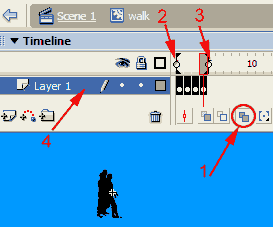 8.
Click the button at the bottom of the layers palette(1) to edit multiple
frames. Set the sliders (2 and 3) to cover all frames. Click just to the
right of the layer name (4) to select the entire layer.
8.
Click the button at the bottom of the layers palette(1) to edit multiple
frames. Set the sliders (2 and 3) to cover all frames. Click just to the
right of the layer name (4) to select the entire layer.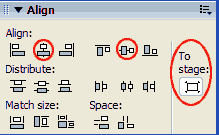 9.
Open your align panel by clicking window=> align. Click the to stage
button. Click align vertical centers. Click align horizontal
centers.
9.
Open your align panel by clicking window=> align. Click the to stage
button. Click align vertical centers. Click align horizontal
centers.