 Vector
Logo Design in Flash Vector
Logo Design in Flash
Practice using the drawing and text tools in flash!
1. Open a new movie in Flash.
2. Set the size to 550 wide by 400 high.
3. Select the Type tool. Set the properties inspector to the
following and type the letter H.
- Text type = Static text
- Font = Webdings
- Size = 350
- Color = Dark green

4. Click back on the arrow tool and click on your text to make sure
it is selected. You will see a text box outline if it is.
 5.
Open your alignment tool by either clicking onthe alignment button on
the toolbar or clicking window=> align. Click the "To Stage" button.
Then click align horizontal center and align vertical center. 5.
Open your alignment tool by either clicking onthe alignment button on
the toolbar or clicking window=> align. Click the "To Stage" button.
Then click align horizontal center and align vertical center.
6. Select Modify => Break Apart (control B). If this was a series of
text it would separate the letters and you would have to break apart
again. Since it is just one letter, it will break apart in one command.
7. With your arrow tool mouse over the top right of the landscape
until you see a corner bracket form under your arrow cursor.
Grab the corner and drag horizontally to the right edge of the stage.
 Grab
the lower right corner of the landscape and drag it to the edge of the
stage. Grab
the lower right corner of the landscape and drag it to the edge of the
stage.
Grab the upper left hand corner of the landscape and drag to the left
edge of the canvas. Drag the bottom left to the edge of the canvas
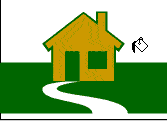 8.
Click your paint bucket and set the color to a light brown. Fill the
house. 8.
Click your paint bucket and set the color to a light brown. Fill the
house.
9. Click on the window and hit your backspace key to make it white to
background.
 10.
Select a medium brown. Click the green door. Select your paintbrush and
set to "paint selected" option. Paint the house frame and door. 10.
Select a medium brown. Click the green door. Select your paintbrush and
set to "paint selected" option. Paint the house frame and door.
11. Use the arrow tool to highlight the entire scene by clicking in
the upper left corner and dragging your cursor down to the lower right
corner of the stage. Use the tgransform tool to reduce the height of the
scene by 1/3.
12. Select the Type tool. Set the properties inspector to the
following and type the letter w.
-
 Text
type = Static text Text
type = Static text
- Font = Webdings
- Size = 450
- Color = Black
Postition the Golf hole on the left using the arrow tool to move it.
 13.
Select the Type tool. Set the properties inspector to the following and
type "On The Green". 13.
Select the Type tool. Set the properties inspector to the following and
type "On The Green".
- Text type = Static text
- Font = Monotype Corsica
- Size = 90
- Color = Black
14. Highlight the text box you just made with the arrow tool. Click
edit=> copy.
15. Click Modify=> break apart. Click Modify=> Break apart again.
Cliock on your fill color and set to light gray.
 16.
Click Modify=>Shape=> Expand fill. Make the fill 4 pixels expanded. 16.
Click Modify=>Shape=> Expand fill. Make the fill 4 pixels expanded.
17. Click edit=> paste in place. Use your arrows on your keyboard to
nudge the black text up one or two clicks up and to the left.
18. Click file=>save. Select the directory you want it in.
19. Click file=> publish settings. Check swf, html, gif, jpg. Click
publish. All these files will be produced in the same directory as you
saved it in. the swf is vector but go on to #20 if you want an Adobe
Illustrator File (.ai) or Encapsulated Post Script (.eps) 20. Click
File=> Export Image. Set the file type to AI first and save. Set the
file type to EPS and save. This should cover all the file types your
client may want. You may want to try saving the gif from another program
from the .ai to get a better image. 
|





