|
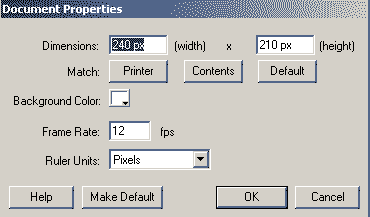 1.
Open a new movie. Right click on your stage and select movie
properties flash 5) or Document Properties (Flash MX). Set the movie
properties to be 240 wide by 210 high, black background. 1.
Open a new movie. Right click on your stage and select movie
properties flash 5) or Document Properties (Flash MX). Set the movie
properties to be 240 wide by 210 high, black background.
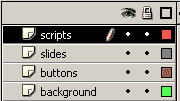 2.
Click on the words Layer1 to get an edit box and Rename the layer 1
Background. Right click on background and insert a layer named Buttons.
Right click on buttons layer and insert a layer named slides. Right click on
layer slides and select insert a layer called scripts. 2.
Click on the words Layer1 to get an edit box and Rename the layer 1
Background. Right click on background and insert a layer named Buttons.
Right click on buttons layer and insert a layer named slides. Right click on
layer slides and select insert a layer called scripts.
 3.
Click on the background layer. 3.
Click on the background layer.
- Select the Rectangle tool.
- Set your line color to black.
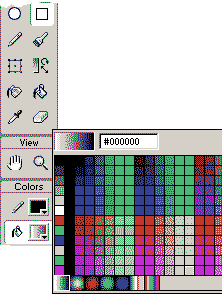
- Select your fill color as a linear gradient as shown on the right.
- In flash 5: use your fill palette to help you set the gradient colors
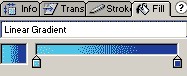
- In flash mx use your color mixer to help you set the colors.
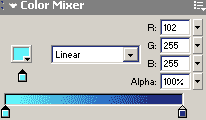
- Set the colors from light blue to dark blue. To set the light blue,
click the left hand small color swatch under the gradient bar. Then click
the little downward carrot on the larger color box to set light blue. To
set the dark blue, click the right hand small color box and then click the
larger box to get the color picker for this. Set this one to dark blue.
Use your rectangle tool to draw a rectangle to cover your stage. Your
fill transform tool
 is
located in flash 5 as an option to the paint bucket, and in flash MX it is
right on your tool bar under the paint bucket. Use your fill transform tool
to rotate your fill 90 degrees counter clockwise so the light blue is on the
bottom and move the center down so the top half appears mostly dark blue.
Lock the background bly clicking in the lock colum on the background layer. is
located in flash 5 as an option to the paint bucket, and in flash MX it is
right on your tool bar under the paint bucket. Use your fill transform tool
to rotate your fill 90 degrees counter clockwise so the light blue is on the
bottom and move the center down so the top half appears mostly dark blue.
Lock the background bly clicking in the lock colum on the background layer.
4. Click on the slides layer. Add a total of 5 key frames to the Slides
layer by clicking in frame 1 of the slides layer and hitting your F6 key 4
times. Click in Frame 1 of the slides layer.
 5.
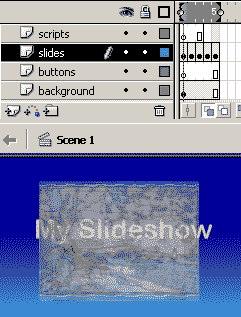
Select your type tool by clicking the A in your tools palette. Set the type
color to gold, hex value #CCCC99, size 27, Ariel, Bold. Type in "My Slide
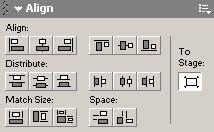
Show" and center this in the upper third. You may want to use the align tool
to center your type left to right to the stage. Highlight your type using
your arrow tool and click insert=> convert to symbol. Call the symbol
"intro" and set it to a movie clip. Later you may want to go back and do a
transition for this text. 5.
Select your type tool by clicking the A in your tools palette. Set the type
color to gold, hex value #CCCC99, size 27, Ariel, Bold. Type in "My Slide
Show" and center this in the upper third. You may want to use the align tool
to center your type left to right to the stage. Highlight your type using
your arrow tool and click insert=> convert to symbol. Call the symbol
"intro" and set it to a movie clip. Later you may want to go back and do a
transition for this text.
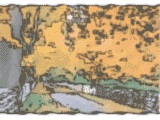
6. Click Frame 2 of the slides layer. Open your library and find the
Fall.gif image and drag onto your stage. Center this image left to right by
using the align tool set to stage. move the image up so it is in the to 2/3
of the stage. Highlight this image and click Insert=> convert to symbol.
Call it slide with properties of a movie clip.
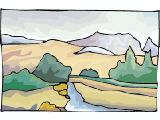
7. Click on Frame 3 of the slides layer. Open your library and find the
lanscape1.gif image and drag onto your stage. Center this image left to
right by using the align tool set to stage. move the image up so it is in
the to 2/3 of the stage. Highlight this image and click Insert=> convert to
symbol. Call it slide1 with properties of a movie clip.
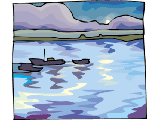
8. Click on Frame 4 of the slides layer. Open your library and find
the landscape2.gif image and drag onto your stage. Center this image left to
right by using the align tool set to stage. move the image up so it is in
the to 2/3 of the stage. Highlight this image and click Insert=> convert to
symbol. Call it slide2 with properties of a movie clip.
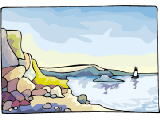
 9.
Click on Frame 5 of the slides layer. Open your library and find the
landscape3.gif image and drag onto your stage. Center this image left to
right by using the align tool set to stage. move the image up so it is in
the to 2/3 of the stage. Highlight this image and click Insert=> convert to
symbol. Call it slide3 with properties of a movie clip. 9.
Click on Frame 5 of the slides layer. Open your library and find the
landscape3.gif image and drag onto your stage. Center this image left to
right by using the align tool set to stage. move the image up so it is in
the to 2/3 of the stage. Highlight this image and click Insert=> convert to
symbol. Call it slide3 with properties of a movie clip.
10. Use your onion skin to help you align each of the frames 2-5 so that
they are equidistance from the top of the stage. Click the onion skin to
turn it off when you are done with this.
11. Click on frame 5 of the scripts layer and hit F5 to have that key frame
span from frames 1-5. Lock the scripts layer and the slides layer.
12. Click on the buttons layer. Select your oval tool. Set the fill color
to be the light blue to dark blue but set to Radial Gradient instead. Move
the center of the gradient using the fill transform tool so that the center
is near the top of the button. Draw a circle the size you want your forward
button to be. Highlight that circle and click Insert=> Convert to symbol.
Set the symbol to button. You may want to import or make the glass buttons I
have posted, but for now, we will have a simple button.
 13.
Drag 3 more instances of your button out onto the stage. Line them up in the
bottom third of your stage. 13.
Drag 3 more instances of your button out onto the stage. Line them up in the
bottom third of your stage.
14. Select your Text tool. Type at font size 27 in dark blue the number 7
on the left button, 3 on the next button, 4 on the next and 8 on the last.
Select each text box, one at a time, and set the font to Webdings. These
will be your button labels.
SCRIPTING
15. Click on the first button. This button will return the movie to frame
1, hence the script has to be written that way. Open your action panels
while this first button is highlighted. Place this script in for the first
button.
16. Click on the second Button. This button will move the movie back a
frame on the time frame., If the frame is 1, it should move to the end
frame; hence this script.
17. Click on the third Button. This button will move the movie forward a
frame on the time frame., If the frame is 5, it should move to the starting
frame frame; hence this script.
18. Click on the third Button. This button will move the movie all the
way to the ending frame. Place this script in for the last button.
Of course, if you use more slides then 5 frames you will
adjust the values accordingly. Your Movie is ready to play! |