
|
Reminder |
| Remember to book mark
this site! |
|

Making a Simple Preloader in FlashMX
The movie on the right uses a very simple preloader. |
|
|
1. Create a new movie.
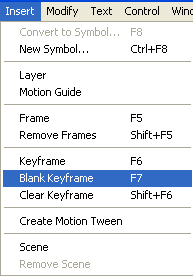
2. Put a Blank key frame in frame 6 of your movie by right clicking
on frame 6 and selecting Insert Blank Keyframe.
|
 |
3. Open your actions script panel and add the script as follows:
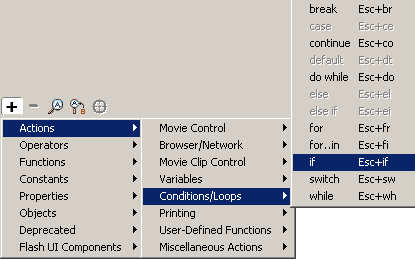
- + => Conditions/Loops => if
-
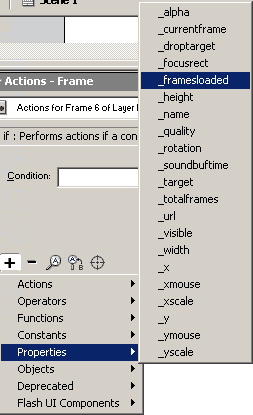 Plant
your cursor in the condition box and then click + => Properties=>
_framesloaded Plant
your cursor in the condition box and then click + => Properties=>
_framesloaded
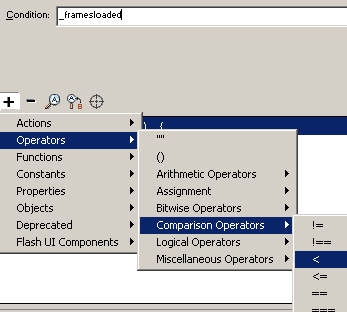
- Click in at the condition box right after the _framesloaded.
Then Click + => Operators => Comparison Operators => <
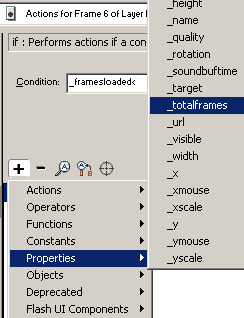
- Click in at the end of the conditions line again and select +
=> properties=> _totalframes.
- Click ACtions=> Movie control => Goto and set the go to action
to gotoAndPlay(1)
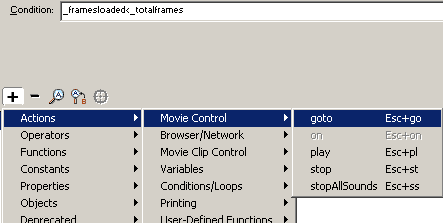
|
The action scripting then looks like this:
if (_framesloaded<_totalframes) {
gotoAndPlay (1);
}
|
|
4. Place your preloading message from frames 1=>6
5. Place your movie in frames 7
and higher or in the next scene.
6. Place a "Stop" in your last frame so you don't loop, or a
"gotoAndPlay(7)"
|
"Building The Web Into a Nicer Place -- One Site At A Time"
Developing Webs Group Copyright © 2001-2026 All Rights Reserved
Privacy
and Legal
|
|
 |





