|
1. First you create a new document.
2. Draw a circle using any color you want. Highlight the circle by using your
arrow tool and double clicking the circle.
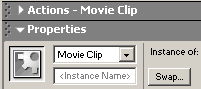 3. Click on
Insert =>convert to symbol and name it circle with the properties of a movie
clip. 3. Click on
Insert =>convert to symbol and name it circle with the properties of a movie
clip.
4. Open your properties panel. Click on instance name and name it circle
5. Now draw a square put any color you want. Highlight the circle by using
your arrow tool and double clicking the square.
6. Click insert=> convert to symbol. Call the symbol invisible and give it
the properties of a button..
7. Right click on that button and left click on edit.
8. Extend your key frame out to hit by hitting f5 on your keyboard
9. Create another button on your scene but this time name the square visible
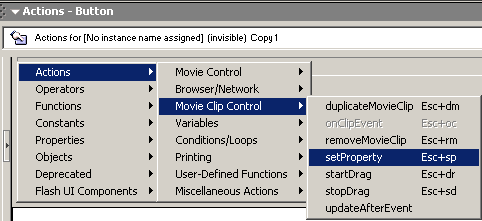
10. Right click on the invisible button left click on actions
11. Click the + symbol and select actions=>Movie Clip=> Set
Property
12. In the top box find the property of _visible in the drop down
menu.
13. Click in the target box. At the bottom of the gray panel you
will see a picture of a target (circle with cross hair). Click it.
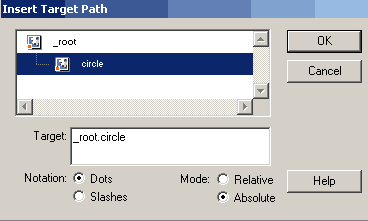 14.
Find your instance of your circle using dot notation and absolute
mode. Click ok. 14.
Find your instance of your circle using dot notation and absolute
mode. Click ok.
14. _Visible property is boolean, that is either on or off. 1 is
on, 2 is off. Set the visible value of 0. Check the expression box.
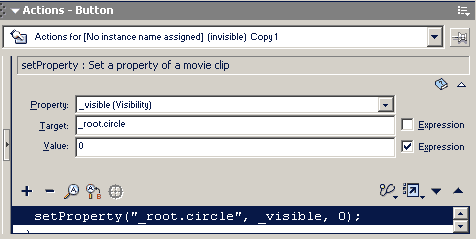
Your action should look like this:
on (release) {
setProperty("_root.circle", _visible, 0);
}
11. Right Click on the visible button left click on actions. Follow
the same procedure for this button as the other but setting the
property value to 1 for visible.
Your action should look like this:
on (release) {
setProperty("_root.circle", _visible, 1);
}
12. Play your movie!
| 





