1.
Open up the movie randomplacement.fla from the last tutorial.
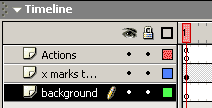
2. Click on the bottom layer, "X Marks the spot" and add a layer. Drag
the new layer so it is below the X layer and name it background.
3.
Click in frame one of the background layer. Click on your view menu and
select rulers. Notice that the rulers show the 0,0 point as being in the
upper left corner. This is our registration point.
Select your rectangle tool set to black outline and yellow fill and draw
a rectangle to cover your stage. Use the line tool to Draw a vertical like
at 275 and a horizontal line at 200. Color in each quadrant a different
light color. Lock the background layer.
4. Click on the actions layer frame 1. Open your actions panel.
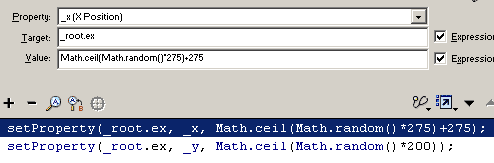
5. The actions in the movie we started with randomized the range for our
movie to appear within the bounds of the movie. The actionscripts look like
this:
6. Limiting to upper left quadrant. We have divided our stage into
4 quadrants, each being 275 pixels wide by 200 pixels high. (check rulers.
If we wanted to limit our movie clip appearance to just the upper left
quadrant, we could simply llimit our multiplier to 275 on the _x property
and 200 on the _y property. change your script to limit the Movie clip ex to
the upper left quadrant and view it. Notice that every 3 seconds it moves to
a new location in the upper left quadrant. Your script should appear as
follows:
7. Limiting to upper right quadrant. The upper right quadrant is
also 275 wide, 200 tall. We can use a similar script, but must offset the _x
(horizontal) random value by +275 to move it to the right 275 pixels. To do
this, we will simply add 275 to our rounded random whole number for _x. The
new script will appear like this.
By placing the number outside the initial math calculations, yet added
into the value parameter, you do not need to think about the rule that
multiplication and division are given priority to addition and subtraction.
8. Limiting to lower left quadrant. The lower left quadrant is
also 275 wide, 200 tall. We can use a similar script, but must offset the _y
(vertical) random value by +200 to move it to down 200 pixels. To do this,
we will simply add 200 to our rounded random whole number for _y. The new
script will appear like this.
9. Limiting to lower right quadrant. The lower
right quadrant is
also 275 wide, 200 tall. We will need to offset the _x (horizontal)
random value by +275 to move it to the right; AND _y
(vertical) random value by +200 to move it to down 200 pixels. To do this,
we will simply add 275 to our _x random whole number and 200 to our random whole number for _y. The new
script will appear like this.
10. Now that you have seen how this can
work, you may understand why the X crossed the lines. The registration point
on the movie clip is in the center of the movie clip. This means that when
the movie clip is positioned, it is the registration point that is actually
on the point. IF _x=275. The movie clip will appear like it is on the line.
Similarly, if _Y is 200, the movie clip will appear on the line.
In the Next Tutorial we will apply this
concept to placing random pond ripples on a picture.






 1.
Open up the movie randomplacement.fla from the last tutorial.
1.
Open up the movie randomplacement.fla from the last tutorial.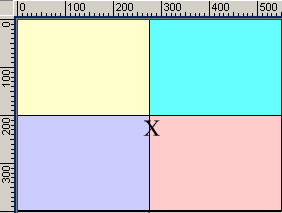 3.
Click in frame one of the background layer. Click on your view menu and
select rulers. Notice that the rulers show the 0,0 point as being in the
upper left corner. This is our registration point.
3.
Click in frame one of the background layer. Click on your view menu and
select rulers. Notice that the rulers show the 0,0 point as being in the
upper left corner. This is our registration point.