To demonstrate random numbers, we can use the Math.random action script.
We can simply make a 60 frame movie that loops and generates a new random
number with each loop. 60 frames will loop every 5 seconds at 12 frames per
second (12 frames per second X 5 seconds = 60 frames.) We will set a
variable equal to the random number, and display the variable in a text box,
thereby demonstrating the new random number every 5 seconds.
1. Open a new document. Rename Layer 1 Text.
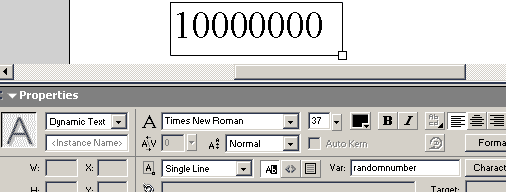
2. Select your type tool and click on your stage. Set your text box to
dymanic
Single line
Black
Align left
var = randomnumber (no spaces)
Type in 6 -8 figures aligned left. The actual type is not important
except to use to size the box.
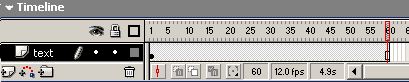
3.
Click in frame 60 and hit your F5 key to extend your key frame to 60 frames
long.
4.
Click the icon on the bottom of the timeline to insert a layer. The layer
should appear above the text layer. Name this layer actions.
5. Click in frame 1 of your actions layer and hit your F7 key to insert a
blank keyframe.
6. Click back in frame 1 of the actions layer. Open your actions panel.
7. From the actions toolbox on the left, click Actions=> Variables=> Set
Variable
8.
For the variable, type in randomnumber exactly the way you did it for the
var value in the text box. There should be no spaces.
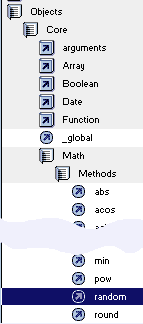
9. Click your cursor in the value box. Then from the actions toolbox on
the left, select Objects=> Core=> Math=> Methods=> Random. You will need to
check the box for Expression so that flash will evaluate the script for
Value. Now your script now looks like this:
randomnumber = Math.random();
10. Test your movie. You will see a random number generated every 5
seconds. Notice that the random number is between 0 and 1. This is always
what this script produces.
The Next tutorial will show you how to expand the generated number to
limits other then 0 to 1.






 3.
Click in frame 60 and hit your F5 key to extend your key frame to 60 frames
long.
3.
Click in frame 60 and hit your F5 key to extend your key frame to 60 frames
long.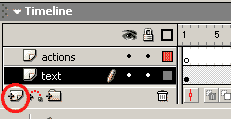 4.
Click the icon on the bottom of the timeline to insert a layer. The layer
should appear above the text layer. Name this layer actions.
4.
Click the icon on the bottom of the timeline to insert a layer. The layer
should appear above the text layer. Name this layer actions.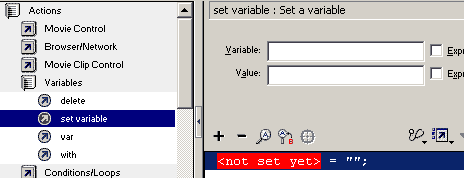
 8.
For the variable, type in randomnumber exactly the way you did it for the
var value in the text box. There should be no spaces.
8.
For the variable, type in randomnumber exactly the way you did it for the
var value in the text box. There should be no spaces.