2.
Click in frame 10 and hit F6 to insert keyframe. Click elsewhere on your
stage to deselect.
3.
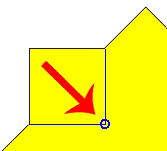
Select your move tool, V, and set the option for snap to. to grab the
point just left of the top point.
Drag the point into the shape so that it snaps to the horizontal and
vertical line.
4. Select every other point and drag it inward to the center just as you
did with the first point in step 3.
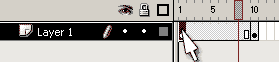
5. Click on the Frame 1 of layer1 to highlight Only that frame.
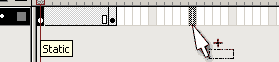
6. Mouse over the selected frame until you see a rectangle form below
your cursor. Press your alt key and a plus (+) symbol will form to the right
of your cursor indicating you will duplicate the frame. Move your cursor
over to frame 20 and release the mouse button, thereby dropping the
duplicated keyframe.
7. Click back on frame 1. Set the properties inspector for frame 1 to
tween = shape.
8. Click on frame 10. Set the properties inspector of frame 10 to tween =
shape.
9. Lock Layer 1 and insert layer 2. Click on the layer 2.
10.
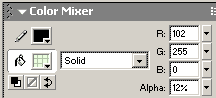
Select your Oval tool. Set the oval tool to have a fill color of Neon Green
set to alpha 12 on the color mixer. Set the stroke color of black. Draw a
circle on your state that covers the octagon.
11.
Use your arrow tool to click on frame 1 of layer 2. Click Window=> Align. on
the align select the to stage option. Then click Align vertical center and
Align Horizontal center.
12. Click in frame 10 of the layer 2 and hit F6. Click in frame 20 of
layer 2 and hit F6. this will convert those frames to keyframes with the
same contents of frame 1.
13. Click on frame 10. With the contents of frame 10 highlighted, use the
transform tool with your shift key held down to resize the selection to a
smaller circle. Use the align pan panel, set to stage, to align vertical
centers and align horizontal centers.
!4. Click on frame 1, and add a shape tween. Click on frame 10 and add a
shape tween.
15.
Test your movie by clicking control=> test movie. As the movie looks you
will see a pause. This is due to frames 1 and 20 being the same. Cclick to
highlight frame 19 on layer1. Shift click to highlight frame 19 of layer 2.
Hit F6 to insert keyframes in layer 1 and 2 at frame 19 simultaneously.
16. Click in frame 20 layer 1 and holding shift down click in frame 20 of
layer 2. Hold your shift key down and hit F5 to remove frame 20.
17. Publish your movie. You have the beginnings of a kaleidoscope. Add
layers with a variety of transparency and tweens, and you will have an
awesome kaleidoscope!






 2.
Click in frame 10 and hit F6 to insert keyframe. Click elsewhere on your
stage to deselect.
2.
Click in frame 10 and hit F6 to insert keyframe. Click elsewhere on your
stage to deselect. 3.
Select your move tool, V, and set the option for snap to. to grab the
point just left of the top point.
3.
Select your move tool, V, and set the option for snap to. to grab the
point just left of the top point. 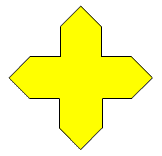
 10.
Select your Oval tool. Set the oval tool to have a fill color of Neon Green
set to alpha 12 on the color mixer. Set the stroke color of black. Draw a
circle on your state that covers the octagon.
10.
Select your Oval tool. Set the oval tool to have a fill color of Neon Green
set to alpha 12 on the color mixer. Set the stroke color of black. Draw a
circle on your state that covers the octagon.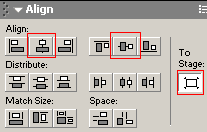 11.
Use your arrow tool to click on frame 1 of layer 2. Click Window=> Align. on
the align select the to stage option. Then click Align vertical center and
Align Horizontal center.
11.
Use your arrow tool to click on frame 1 of layer 2. Click Window=> Align. on
the align select the to stage option. Then click Align vertical center and
Align Horizontal center.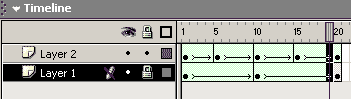 15.
Test your movie by clicking control=> test movie. As the movie looks you
will see a pause. This is due to frames 1 and 20 being the same. Cclick to
highlight frame 19 on layer1. Shift click to highlight frame 19 of layer 2.
Hit F6 to insert keyframes in layer 1 and 2 at frame 19 simultaneously.
15.
Test your movie by clicking control=> test movie. As the movie looks you
will see a pause. This is due to frames 1 and 20 being the same. Cclick to
highlight frame 19 on layer1. Shift click to highlight frame 19 of layer 2.
Hit F6 to insert keyframes in layer 1 and 2 at frame 19 simultaneously.