|
 |
||||||||||||
 |
 |
||||||||||||

|

Creating Scrolling Text Boxes Using Flash MXBy: CivicCX In this tutorial you will learn how to create your own scrolling flash text box, in Macromedia Flash MX.
2) Make sure your viewing the components area, if you can not locate this click on Window at the top of your screen and check "Components".
3) Next view your components screen and click "Scroll Pane" to make it the active button. Hold it down and drag it to your workspace area, and release your mouse.
5) Now, go to the bottom of your screen which says properties, and click on Horizontal Scroll, or Vertical Scroll.
6) You can get rid of either your horizontal or vertical scroll on your pane by clicking on it and choosing False.
7) Now draw, or create what you want to be in the
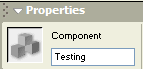
scroll pane in your workspace area. 8) Once something is drawn or written highlight it and choose "Insert", then "Convert to Symbol". 9) On the screen that shows up choose the first option which says "Movie Clip" 10) Now you have your content ready to be inserted into your scroll pan. 11) View your library and find your movie clip, right click on it and choose "Linkage" 12) In the dialog box that appears choose "Export for Action Script", and click okay. 13) Choose the properties tab and give the component a name as shown here.
13) View the properties of your scroll pan once again and choose the "Parameters" tab.
14) In the "Scroll Content" area type in the name of your movie clip which you want to be scrolled in the scroll box.
View your movie, and you should have a great looking flash scroll box. An example of one is shown here.
"Building The Web Into a Nicer Place -- One Site At A Time"
|
|
|
||||||||||
| |
|||||||||||||

|
|
||||||||||||
 |
|
||||||||||||



 1)
Create a new or open up an existing document on Flash MX.
1)
Create a new or open up an existing document on Flash MX. 4)
A small scroll pane will then be inserted, you can adjust the size of your
scroll pane by clicking on "Modify", then "Transform" and
scroll over to "Scale".
4)
A small scroll pane will then be inserted, you can adjust the size of your
scroll pane by clicking on "Modify", then "Transform" and
scroll over to "Scale".