|
 |
||||||||||||||||
 |
 |
||||||||||||||||

|

"Building The Web Into a Nicer Place -- One Site At A Time"
|
|
|
||||||||||||||
| |
|||||||||||||||||

|
|
||||||||||||||||
 |
|
||||||||||||||||
|
|
||||||||||||||||
|
|
|
||||||||||||||||
|
"Building The Web Into a Nicer Place -- One Site At A Time"
|
|
|
||||||||||||||
| |
|||||||||||||||||
|
|
|
||||||||||||||||
|
|
|
||||||||||||||||



 Draw
an oval with no fill. To do this, select the red slash
Draw
an oval with no fill. To do this, select the red slash
 for
the fill color and black for the line color. Select the oval tool
for
the fill color and black for the line color. Select the oval tool
 and
draw.
and
draw. to
select the oval.
to
select the oval. Use
the Arrow tool
Use
the Arrow tool


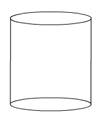 Select
the line tool
Select
the line tool
 and
connect the top oval to the bottom oval on the sides, making sure
your line starts at the oval and ends at the oval.
and
connect the top oval to the bottom oval on the sides, making sure
your line starts at the oval and ends at the oval. Click
the bottom oval's inside half to highlight it and delete it.
Click
the bottom oval's inside half to highlight it and delete it. Open the
mixer panel by clicking the triangle next to the title so it points
down.
Open the
mixer panel by clicking the triangle next to the title so it points
down. Select a linear Gradient.
 Click
next to the White Gradient Color Modifier color box so a new one appears.
Click
next to the White Gradient Color Modifier color box so a new one appears. Drag
the Color Modifier to the center of the gradient bar.
Drag
the Color Modifier to the center of the gradient bar. Click
directly on the right Gradient Color Modifier color box(1). Click on
the color box above(2) and set it to black. This will set your right
color modifier to black if you click on them in this order.
Click
directly on the right Gradient Color Modifier color box(1). Click on
the color box above(2) and set it to black. This will set your right
color modifier to black if you click on them in this order. from the tool bar
 Fill
the 2 areas of the main object on the stage with this gradient.
Fill
the 2 areas of the main object on the stage with this gradient.
 Select
the top oval fill using the fill
Select
the top oval fill using the fill