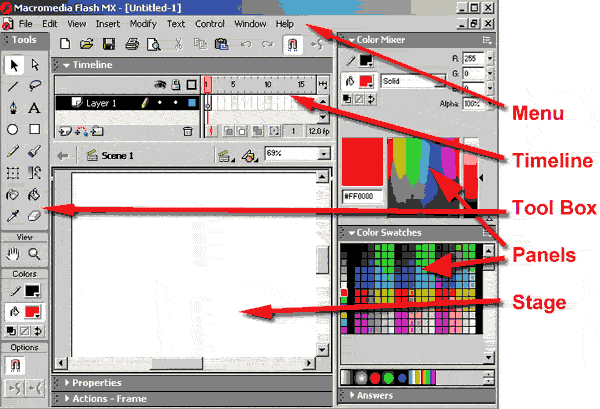
| Flash Program Layout 1. Open your program. You will see a layout
like below. find the following items.
- Toolbox - editing tools
- Menu - for all program choices
- Stage - where your movie viewing area is
- Panels - where specific settings are for tools
- Timeline - time progresses from left to right
- Layers - stacked content for relative position on the stage
- Toolbar - main movie tools
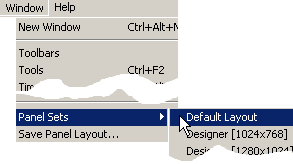 2.
Click on your Window menu and select Panel Sets. Select default layout
to set flash back to the original layout. 2.
Click on your Window menu and select Panel Sets. Select default layout
to set flash back to the original layout.
Window=> Panel Sets=> Default Layout
3. Click Window=> library F11. This opens the library that stores
symbols, sounds, images for your movie. 4. Below the stage is the
properties inspector. Click the triangle to the left of the work
Properties to open and close the panel. Properties of the movie, a
symbol, a frame, will be displayed here.
 5.
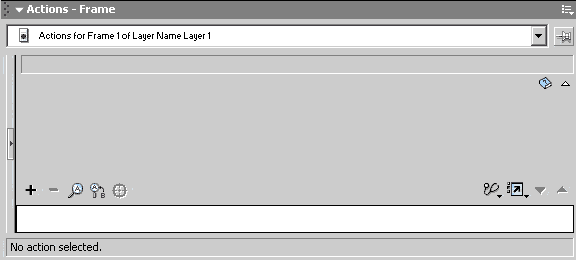
Right near the Properties inspector is the Acton script panel. Use the
triangle to the left of the work Action script to open and close it.
This panel is used to create and assign scripts to buttons and frames.
 |





