2. Set your fill color to a radial gradient of inside color orange, hex
#FF9900, and outside color of dark orange hex # 808080. Set the line
color to black.
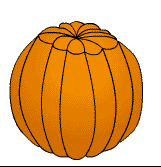
3. Using your Oval tool, Draw a round shape for your overall pumpkin. It
does not have to be perfect.
4. Select the line tool and draw an arc across the top for the "lid" of
the pumpkin. Use the arrow tool to bend the line down so it dips down to
show a curve. Draw Vertical lines from the top arc to the bottom. Bend these
to the right and left depending on which side of center.
Drag the arc segments on the top down a bit to curve them and draw
segments from the center of the top section radiating out. Bend the curves
up and drag the joints down in the back to get a rounded pumpkin appearance.
Bend the line junctions inward on the bottom of the pumpkin bend the arcs on
he bottom outward.
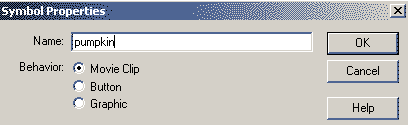
5. Use your arrow tool to highlight all of the pumpkin. Click
Insert=>convert to symbol. Call the symbol pumpkin.
6.
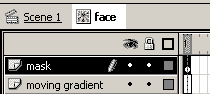
Click on Insert=> New Symbol and call it face. Rename layer1 to "Moving
Gradient". insert a new layer and call it "MASK".
7. Click on Frame1 of the mask layer. Use your lines, fill , oval and
rectangle tool to create your face in any color. Highlight your face and
click Insert=>convert to symbol. Call this symbol Face2. Click on frame 10
and hit your F5 key. Lock the mask layer.
8. Click on your "moving gradient" layer. On frame one select your
oval tool with no line and an oval fill of radial gradient center = yellow,
outside = orange. Draw an oval that will cover all of the face and more.
9. Add key frames to frames 5 and 10 by clicking on frame 5 and hitting
your F6 Key and then click on frame 10 and hit your F6 key.
10. Click on the fill tool- paint bucket and select the fill adjustment
option. On frame 5, use the fill adjustment tool to move the gradient center
up toward the top of the face.
11.
Click on frame 1. Select from the frames panel the tweening = shape. Do the
same for frame 5.
12. Right click on the mask layer and select mask. Move back to scene 1
to edit the scene.
13. Open your library and drag face2 onto your stage. Drag face 1 onto
the stage. Offset face 1 from face 2 by a small amount and group them by
clicking Modify=>group. Adjust the sizes. by selecting the scale tool option
for the arrow tool. Place this group over your pumpkin.
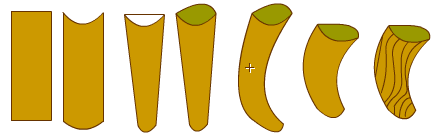
14. Create a new symbol by clicking insert=> new symbol and call it stem.
Draw a stem for your pumpkin in this symbol.
Start with a rectangle.
Bend the top and bottom lines.
Add a top line and pull the bottom lines in to narrow them.
Stretch out the top straight line and color the cut stem.
Bend the side lines to the side.
Drag the top right corner down.
Use the pencil tool to add lines.
14. Click back to the scene 1 and drag your stem from the library.
Position and resize.
15. Right click on your stage and select movie properties. Set the
background color to Black.
16. Click on your pumpkin and set the effects on the effects panel to
brightness = -40. Do the same for your stem.








 6.
Click on Insert=> New Symbol and call it face. Rename layer1 to "Moving
Gradient". insert a new layer and call it "MASK".
6.
Click on Insert=> New Symbol and call it face. Rename layer1 to "Moving
Gradient". insert a new layer and call it "MASK".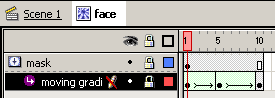 11.
Click on frame 1. Select from the frames panel the tweening = shape. Do the
same for frame 5.
11.
Click on frame 1. Select from the frames panel the tweening = shape. Do the
same for frame 5.