|
 INPUT
TEXT INPUT
TEXT
2. Click on frame 1 of the Input text layer. Select your "A" type
tool. Set the properties to the following:
- Input text
- Size 12 pt
- Blue
- Align = left
- single line

3. Click on the stage about center top. Set the variable name for the
text box to mytext. By setting the variable for the input box, any text
placed in the box automatically is set equal to the variable mytext.
STATIC TEXT
4. Type in normal static text on the left of the text box that indicates
you should type in the box. Lock the Input text layer. DYNAMIC
TEXT 5. Click in Layer1 of the Dynamic text layer. Select the text
type tool "A" from the tool bar. Set the properties for the dynamic text box
to the following:
- Dynamic text
- Font of your choice
- 60 pt
- white
- normal row height
- Multiline
Click on the sage and name the var = mytext. Adjust this box so it is
nearly the width of the stage and more then half of the height. Lock this
layer.

Click in frame2 of each of the layers and hit your F5 key. BACKGROUND
and LENS 6. Set the background color to Blue.Use your magnifying
glass to zoom out so all of your work area beyond your stage shows.
 7.
Click in the first frame of the magnifier layer. Select your rectangle
tool with blue as your fill color and no line. 7.
Click in the first frame of the magnifier layer. Select your rectangle
tool with blue as your fill color and no line.
 Draw
a blue rectangle to fit all of the viewing area. Draw
a blue rectangle to fit all of the viewing area.
8. Select your oval marquee tool set to black line, and radial gradient
darkgrey-white-darkgrey. Draw a circle just up and to the left of the center
of your blue area.

 9.
Zoom in on your circle so that it fills your screen. Select the oval tool
with black line and No fill. 9.
Zoom in on your circle so that it fills your screen. Select the oval tool
with black line and No fill.
 10.
Draw a circle inside your filled circle. Click the ring using your arrow
tool to highlight the ring. Move and center the ring inside the first
circle. Delete the inside fill of the inner circle by clicking it to
highlight and then hit your backspace key. 10.
Draw a circle inside your filled circle. Click the ring using your arrow
tool to highlight the ring. Move and center the ring inside the first
circle. Delete the inside fill of the inner circle by clicking it to
highlight and then hit your backspace key.
11. Select your fill between the two circles with your arrow tool. Set
the sliders on the color mixer so that the grey=>white=>grey will show in
your ring. 12. Double click the ring of fill so that the two circle lines
are also highlighted and click INsert=>convert to symbol. Set the symbol
to the properties of a button and call it lens.
 13.
Since your other layers are locked you can click select all while still on
the magnifier lens. Click Insert=>convert to symbol. Set it to a movie clip
with the name magnifier. double. Move this symbol so that it intersects the
upper right corner of your stage. 13.
Since your other layers are locked you can click select all while still on
the magnifier lens. Click Insert=>convert to symbol. Set it to a movie clip
with the name magnifier. double. Move this symbol so that it intersects the
upper right corner of your stage. 14. Name this symbol instance lens. Open
your lens instance and then open your button called lens. Set your fill to
radial gradient of white, alpha 80%, to white alpha 0%. fill the inner
circle of the lens.
15. Click back out to your scene and highlight your lens instance. Open
your actions panel. 16. On your actions panel,
- click Plus + =>actions=>Movie clip control=>onclipevent.
Select load from the list. Move your cursor to the end of the line.
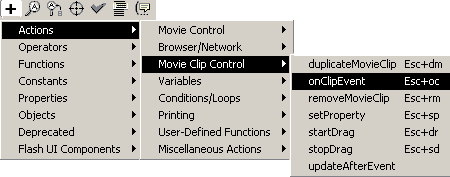
- Click plus + =>actions => Movie clip control => start drag.
Put empty quote set in the brackets.("")

The resulting script should look like this:
Play your movie. Type in the box.
|





