2.
In your tool box set your color fill and stroke fill to black and choose the
text tool.
3.Use a text that is wide for example Arial Bold ( changes can be made in
properties under the menu window>properties).
4. Type on the stage your domain name or make one up of your choice (
example developingwebs.net)
5. In your color mixer window ( under menu window>color mixer) change from
solid to radial by clicking on radial.
6. You will notice at the bottom of your tool bar your fill color will now
be a radial gradient, white to black. Click on your STROKE box which is above
your fill color box and change the color to no color ( a white box with a
red line through it located near the top right corner)
7. In your Timeline (left side of the frames) right click on your Layer 1
and insert Layer. Now you will see Layer 2 above Layer 1. Highlight Frame 1
of Layer 2
8. Using your oval tool draw a circle over the dot which is before your com
in your domain name (to make it easier you can double click on the layer
text names under the Timeline and change Layer 1 name to text and Layer 2 to
dot).
9. Click back on Frame 1 of Layer 1.
10. You can NOT apply gradient to text that is not
broken apart. With Frame 1 of Layer 1 highlighted click on the Menu Modify
=> break apart (ctrl B). You will notice each letter surrounded by individual blue
boxes. Now click Modify=> break apart one more time. Now you will see the blue
boxes disappear and all the letters are selected as fill. You are ready to
apply the gradient.
11. Using your fill tool (make sure your radial gradient is in the fill
color still) click on the top left corner of your first letter on the stage.
This is where the center of the gradient color will appear.
12. Click on Frame 30 of Layer 1. Hit F6 to insert a KEY frame.
(Or
right click on frame 30 and insert key frame OR you can go up to the menu
and click on insert=> keyframe).
13. In Layer 2 click on Frame 30 and hit F5 to insert a frame to extend
Layer 2 to even out with Layer 1.
14. Click anywhere from Frame 1 to Frame 29 in Layer 1 and go to your
properties and under tween click shape. Notice the
frames of Layer 1 turn green with an arrow. You now have a shape tween.
15. Click on Frame 30 of Layer 1. Make sure your fill tool is still gradient
and then click on the top right hand corner of your last letter which should
be the letter m in com. You will notice the gradient of your name change.
Click back on Frame 1 of Layer 1 and hit enter to see your movie play OR
click on menu control>rewind>play. To see a continuous play also mark loop
under menu control. notice the quick jump when the movie loops from frame 30
to frame 1.
16. To make the animation loop smoother click on frame 60 of Layer 1 and hit F7
to add a blank key frame. Click on Frame 60 of Layer 2 and hit F5 to add Frames
to extend the layer to match Layer 1.
17. To continue with the smooth flow of the animation RIGHT click on Frame 1
of Layer 1 and click on copy frames. Then RIGHT click on Frame 60 of Layer 1
and paste frames. In the control menu click>play or click on Frame 1 of
Layer 1 and hit enter. Your animation is done. You can also click on your
stage background and change the color under properties>background so you can
view your animation better. Save your file and publish.
18.
Click on any Frame in Layer 1 from 30 to 59. In properties click on shape.
You will see that 30 to 60 becomes a shape tween.






 2.
In your tool box set your color fill and stroke fill to black and choose the
text tool.
2.
In your tool box set your color fill and stroke fill to black and choose the
text tool. 
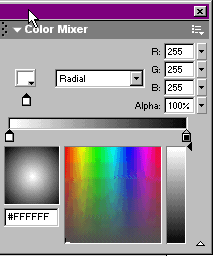 5. In your color mixer window ( under menu window>color mixer) change from
solid to radial by clicking on radial.
5. In your color mixer window ( under menu window>color mixer) change from
solid to radial by clicking on radial. 8. Using your oval tool draw a circle over the dot which is before your com
in your domain name (to make it easier you can double click on the layer
text names under the Timeline and change Layer 1 name to text and Layer 2 to
dot).
8. Using your oval tool draw a circle over the dot which is before your com
in your domain name (to make it easier you can double click on the layer
text names under the Timeline and change Layer 1 name to text and Layer 2 to
dot). 11. Using your fill tool (make sure your radial gradient is in the fill
color still) click on the top left corner of your first letter on the stage.
This is where the center of the gradient color will appear.
11. Using your fill tool (make sure your radial gradient is in the fill
color still) click on the top left corner of your first letter on the stage.
This is where the center of the gradient color will appear.  12. Click on Frame 30 of Layer 1. Hit F6 to insert a KEY frame.
(Or
right click on frame 30 and insert key frame OR you can go up to the menu
and click on insert=> keyframe).
12. Click on Frame 30 of Layer 1. Hit F6 to insert a KEY frame.
(Or
right click on frame 30 and insert key frame OR you can go up to the menu
and click on insert=> keyframe). 13. In Layer 2 click on Frame 30 and hit F5 to insert a frame to extend
Layer 2 to even out with Layer 1.
13. In Layer 2 click on Frame 30 and hit F5 to insert a frame to extend
Layer 2 to even out with Layer 1.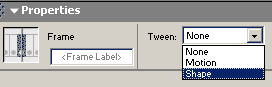 14. Click anywhere from Frame 1 to Frame 29 in Layer 1 and go to your
properties and under tween click shape. Notice the
frames of Layer 1 turn green with an arrow. You now have a shape tween.
14. Click anywhere from Frame 1 to Frame 29 in Layer 1 and go to your
properties and under tween click shape. Notice the
frames of Layer 1 turn green with an arrow. You now have a shape tween.
 15. Click on Frame 30 of Layer 1. Make sure your fill tool is still gradient
and then click on the top right hand corner of your last letter which should
be the letter m in com. You will notice the gradient of your name change.
15. Click on Frame 30 of Layer 1. Make sure your fill tool is still gradient
and then click on the top right hand corner of your last letter which should
be the letter m in com. You will notice the gradient of your name change.