2.
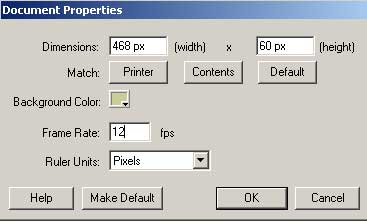
Open the properties inspector. Click the button that has your movie size.Set
your stage properties to
Width = 468
Height = 60
Color = gold, CCCC99
Frame rate = 12 FPS
Ruler units = pixels
3. Highlight layer 1 and click in the first frame.
4. Select your Type tool, T, Set the type tol on the properties inspector
to
Static Text
Font = Monotype Corsiva
Size = 55
Dark Blue
Left aligned.
5.
Click on the left side of your stage. Type in the letter D.
6.
Click on frame number 5 where there is no keyframe. Click your F6 key to
insert a keyframe. This keyframe will have your D in it. Select your type
tools and click on your text box to edit. Add the letter e after the D.
7.
Click on frame number 10 where there is no keyframe. Click your F6 key to
insert a keyframe. This keyframe will have your De in it. Select your type
tools and click on your text box to edit. Add the letter v after the De.
8.
Insert another keyframe on frame 15 by hitting your F6 key. This
keyframe will have your Dev in it. Edit the text box by adding the letter e
after the Dev.
9.
Insert another keyframe on frame 20 by hitting your F6 key. This
keyframe will have your Deve in it. Edit the text box by adding the letter l
after the Deve.
10.
Insert another keyframe on frame 25 by hitting your F6 key. This
keyframe will have your Devel in it. Edit the text box by adding the letter
o after the Devel.
11. Insert another keyframe on frame 30 by hitting your F6 key.
This keyframe will have your Develo in it. Edit the text box by adding the
letter p after the Develo.
12. Insert another keyframe on frame 35 by hitting your F6 key.
This keyframe will have your Develop in it. Edit the text box by adding the
letter i after the Develop.
13. Insert another keyframe on frame 40 by hitting your F6 key.
This keyframe will have your Developi in it. Edit the text box by adding the
letter n after the Developi.
14. Insert another keyframe on frame 45 by hitting your F6 key.
This keyframe will have your Developin in it. Edit the text box by adding
the letter g after the Developin.
15. Insert another keyframe on frame 50 by hitting your F6 key.
This keyframe will have your Developing in it. Edit the text box by adding a
space followed by the letter W after the Developing.
16. Insert another keyframe on frame 55 by hitting your F6 key.
This keyframe will have your Developing W in it. Edit the text box by adding
the letter e after the Developing W.
17. Insert another keyframe on frame 60 by hitting your F6 key.
This keyframe will have your Developing We in it. Edit the text box by
adding the letter b after the Developing We.
18. Insert another keyframe on frame 65 by hitting your F6 key.
This keyframe will have your Developing Web in it. Edit the text box by
adding the letter s after the Developing Web.
19. Insert another keyframe on frame 70 by hitting your F6 key.
This keyframe will have your Developing Webs in it. Edit the text box by
adding a period . after the Developing Webs.
20. Insert another keyframe on frame 75 by hitting your F6 key.
This keyframe will have your Developing Webs. in it. Edit the text box by
adding the letter n after the Developing Webs..
21. Insert another keyframe on frame 80 by hitting your F6 key.
This keyframe will have your Developing Webs.n in it. Edit the text box by
adding the letter e after the Developing Webs.n.
22. Insert another keyframe on frame 85 by hitting your F6 key.
This keyframe will have your Developing Webs.ne in it. Edit the text box by
adding the letter t after the Developing Webs.ne.
23. Select your arrow tool. Click in frame 120 and hit your F5 key to extend the last keyframe
out to 120 on the time line.
24. Test your movie and publish. Adjust your frame frate to change the
speed.






 2.
Open the properties inspector. Click the button that has your movie size.Set
your stage properties to
2.
Open the properties inspector. Click the button that has your movie size.Set
your stage properties to
 5.
Click on the left side of your stage. Type in the letter D.
5.
Click on the left side of your stage. Type in the letter D. 6.
Click on frame number 5 where there is no keyframe. Click your F6 key to
insert a keyframe. This keyframe will have your D in it. Select your type
tools and click on your text box to edit. Add the letter e after the D.
6.
Click on frame number 5 where there is no keyframe. Click your F6 key to
insert a keyframe. This keyframe will have your D in it. Select your type
tools and click on your text box to edit. Add the letter e after the D. 7.
Click on frame number 10 where there is no keyframe. Click your F6 key to
insert a keyframe. This keyframe will have your De in it. Select your type
tools and click on your text box to edit. Add the letter v after the De.
7.
Click on frame number 10 where there is no keyframe. Click your F6 key to
insert a keyframe. This keyframe will have your De in it. Select your type
tools and click on your text box to edit. Add the letter v after the De. 8.
Insert another keyframe on frame 15 by hitting your F6 key. This
keyframe will have your Dev in it. Edit the text box by adding the letter e
after the Dev.
8.
Insert another keyframe on frame 15 by hitting your F6 key. This
keyframe will have your Dev in it. Edit the text box by adding the letter e
after the Dev. 9.
Insert another keyframe on frame 20 by hitting your F6 key. This
keyframe will have your Deve in it. Edit the text box by adding the letter l
after the Deve.
9.
Insert another keyframe on frame 20 by hitting your F6 key. This
keyframe will have your Deve in it. Edit the text box by adding the letter l
after the Deve. 10.
Insert another keyframe on frame 25 by hitting your F6 key. This
keyframe will have your Devel in it. Edit the text box by adding the letter
o after the Devel.
10.
Insert another keyframe on frame 25 by hitting your F6 key. This
keyframe will have your Devel in it. Edit the text box by adding the letter
o after the Devel. 11. Insert another keyframe on frame 30 by hitting your F6 key.
This keyframe will have your Develo in it. Edit the text box by adding the
letter p after the Develo.
11. Insert another keyframe on frame 30 by hitting your F6 key.
This keyframe will have your Develo in it. Edit the text box by adding the
letter p after the Develo. 12. Insert another keyframe on frame 35 by hitting your F6 key.
This keyframe will have your Develop in it. Edit the text box by adding the
letter i after the Develop.
12. Insert another keyframe on frame 35 by hitting your F6 key.
This keyframe will have your Develop in it. Edit the text box by adding the
letter i after the Develop. 13. Insert another keyframe on frame 40 by hitting your F6 key.
This keyframe will have your Developi in it. Edit the text box by adding the
letter n after the Developi.
13. Insert another keyframe on frame 40 by hitting your F6 key.
This keyframe will have your Developi in it. Edit the text box by adding the
letter n after the Developi. 14. Insert another keyframe on frame 45 by hitting your F6 key.
This keyframe will have your Developin in it. Edit the text box by adding
the letter g after the Developin.
14. Insert another keyframe on frame 45 by hitting your F6 key.
This keyframe will have your Developin in it. Edit the text box by adding
the letter g after the Developin. 15. Insert another keyframe on frame 50 by hitting your F6 key.
This keyframe will have your Developing in it. Edit the text box by adding a
space followed by the letter W after the Developing.
15. Insert another keyframe on frame 50 by hitting your F6 key.
This keyframe will have your Developing in it. Edit the text box by adding a
space followed by the letter W after the Developing. 16. Insert another keyframe on frame 55 by hitting your F6 key.
This keyframe will have your Developing W in it. Edit the text box by adding
the letter e after the Developing W.
16. Insert another keyframe on frame 55 by hitting your F6 key.
This keyframe will have your Developing W in it. Edit the text box by adding
the letter e after the Developing W. 17. Insert another keyframe on frame 60 by hitting your F6 key.
This keyframe will have your Developing We in it. Edit the text box by
adding the letter b after the Developing We.
17. Insert another keyframe on frame 60 by hitting your F6 key.
This keyframe will have your Developing We in it. Edit the text box by
adding the letter b after the Developing We. 22. Insert another keyframe on frame 85 by hitting your F6 key.
This keyframe will have your Developing Webs.ne in it. Edit the text box by
adding the letter t after the Developing Webs.ne.
22. Insert another keyframe on frame 85 by hitting your F6 key.
This keyframe will have your Developing Webs.ne in it. Edit the text box by
adding the letter t after the Developing Webs.ne.