|
 2.
Click the menu item insert=> create a new symbol. Set the following: 2.
Click the menu item insert=> create a new symbol. Set the following:
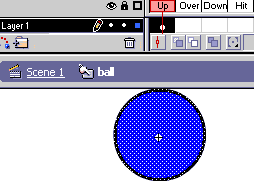
- Name: ball
- Properties: Button
3 . Use the oval tool to draw a ball inside the ball symbol on frame 1.
 4. Create new symbol
by clicking insert => New symbol. 4. Create new symbol
by clicking insert => New symbol.
- Name: Dragable
- Property: Movie clip.
5. Open your library so you have access to your library items. Place the ball symbol inside the dragable symbol.
6. While dragable is open, select the ball and open your actions panel.
7. On the action panel and Click the + => Actions => Movie Clip Control =>
startDrag.

8. Click Directly on the script where it has written on(release) to expose the
event types. Uncheck release and check press.

9. On the action panel, Click on the last line of script in the white area.
Click the + => Actions => Movie Clip Control => stopDrag.

 10.
Your script should look like this: 10.
Your script should look like this:
11. Click back on your main stage. Drag a copy of your ball onto the
stage. Now test your movie!
| 





