You will need this movie to complete this scripting project
1. Open your stopgo.fla movie in Flash MX. Test the movie by clicking
Control=> test Movie. Notice that the movie starts and continues forever.
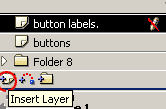
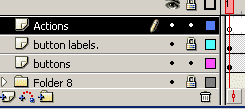
2. Highlight the top layer, button labels, and click the insert new layer
button on the bottom of the layers palette. Rename this layer Actions.
3.
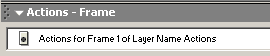
Click in frame 1 of your actions layer. Open your actions panel. The jump
menu will say "actions for Frame 1 of Layer Name Actions.
4. The action panel should be split into two columns. The left column may
collapse by clicking the button on the center of the vertical bar. It can
open there too. The left column has a list of default actions we will use
for this tutorial.
5.
Click Actions on the left so that it drops down some basic action
categories. Click Movie Control to display the movie control actions. Double
click the Stop action.
Notice that the jump menu still displays "actions for Frame 1 of Layer
Name Actions". Underneath in the gray area is a description of the stop
action. In the white area below is the action:
stop();
When this action is played the movie will stop on that frame, hence the
ability to control when a movie starts. Click Control=> test movie. The
movie will not play. Right click on the movie as it is in the preview window
and select play. It will play one loop until it gets back to frame 1 and
stops again.
6.
Click in frame 22 of the Actions layer. Hit your F6 key to insert a key
frame. Making sure this key frame is highlighted, Double click the "goto"
action on the left of the Actions panel. Set the frame number in the
parameters to frame 2.
This will automatically cycle the movie to frame two when it gets to the
end, thereby missing the stop. Click control=> test movie. Right click on
the movie to select play so the movie will play. Notice it will continue to
play over and over after you start it.
7.
It is easier for viewers to use buttons to control a movie as it plays
instead of right clicking. We have two buttons ready to be scripted. the
first one is a stop || button, and the second is a play > button.
Button scripts do not get put in the timeline in frames like the scripts we
just did. They get assigned to a button instance.
Click on the Stop button. Open the actions panel and select actions=>
movie control=> stop from the left list of actions. Make sure you double
click stop to transfer it to the actions panel.
8.
Click on play button to highlight it. Double click play on the actions panel
on the left so that it transfers the action to the white area.
Test your movie. It should be fully functional. now!






 3.
Click in frame 1 of your actions layer. Open your actions panel. The jump
menu will say "actions for Frame 1 of Layer Name Actions.
3.
Click in frame 1 of your actions layer. Open your actions panel. The jump
menu will say "actions for Frame 1 of Layer Name Actions.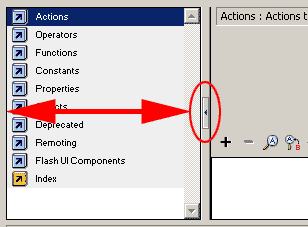
 5.
Click Actions on the left so that it drops down some basic action
categories. Click Movie Control to display the movie control actions. Double
click the Stop action.
5.
Click Actions on the left so that it drops down some basic action
categories. Click Movie Control to display the movie control actions. Double
click the Stop action. 6.
Click in frame 22 of the Actions layer. Hit your F6 key to insert a key
frame. Making sure this key frame is highlighted, Double click the "goto"
action on the left of the Actions panel. Set the frame number in the
parameters to frame 2.
6.
Click in frame 22 of the Actions layer. Hit your F6 key to insert a key
frame. Making sure this key frame is highlighted, Double click the "goto"
action on the left of the Actions panel. Set the frame number in the
parameters to frame 2.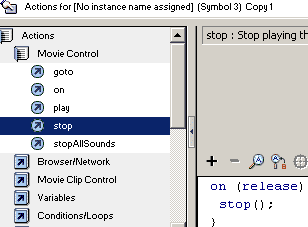 7.
It is easier for viewers to use buttons to control a movie as it plays
instead of right clicking. We have two buttons ready to be scripted. the
first one is a stop || button, and the second is a play > button.
Button scripts do not get put in the timeline in frames like the scripts we
just did. They get assigned to a button instance.
7.
It is easier for viewers to use buttons to control a movie as it plays
instead of right clicking. We have two buttons ready to be scripted. the
first one is a stop || button, and the second is a play > button.
Button scripts do not get put in the timeline in frames like the scripts we
just did. They get assigned to a button instance.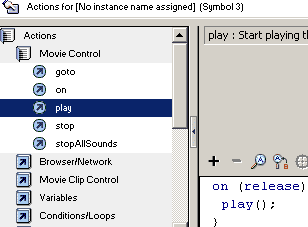 8.
Click on play button to highlight it. Double click play on the actions panel
on the left so that it transfers the action to the white area.
8.
Click on play button to highlight it. Double click play on the actions panel
on the left so that it transfers the action to the white area.