You will need this library movie to complete this series of tutorials.
OBJECTIVE: In Flash MX we will script a movie clip on the X and Y axis and use a
condition to keep the movie clip on the stage.
1. Open the file you downloaded for this tutorial. Use the default dimensions of
the movie (550 px wide by 400 px high) and keep the background white. Rename
Layer 1 background.
2. In the toolbox select the Rectangle Tool (R). Draw the rectangle that covers
the stage. Change the color of the movie by highlighting it and then clicking on
the color swatch next to "Background:" in the Properties panel and typing the
hexadecimal value of #FFFF99. With the rectangle still highlighted change the
dimensions of the rectangle to 550 pixels by 400 pixels.
By coloring the stage yellow we can see how the movie clip moves into and out of
the stage after we script it later on.
3. Although we haven't done anything yet we will save the movie now so it's
convenient to save our work as we go along. To save your work click File => Save
As to create an .fla file you can edit later on. Then click on File => Publish
to create an .html file and a .swf file that are ready for publishing on the
web.
It's a good habit to save your work often as you work in flash so you will get a
prompt to save throughout this tutorial. This practice prevents loss of work and
a zillion "edit-undos".
4. Now we are going to add a symbol to the stage that we will script later
on. In the timeline, add layer. Double-click on the name "Layer 2" and rename
it "Coins".
5. Select frame 1 of the Coins layer. Open your library (F11) and drag an
instance of the "scoring" button out on your stage. Close the library.
6. Before we script this symbol we will want to put the button inside a movie
clip. Scripting movie clips is a more reliable method than scripting buttons
because movie clips are more maneuverable. This is the traditional way to do it.
Click the button on the stage ONCE to show a blue outline around it. (Do NOT
double-click on it).
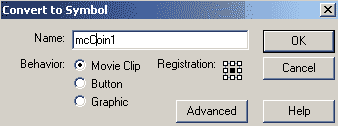
Click Insert => Convert to Symbol. Name the symbol mcCoin1 with the behavior of
a Movie Clip. Set the registration point in the center. Click ok.
7.
Open your Properties Panel (Ctrl+F3) and add the Instance Name of the movie clip
to "coin1".
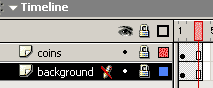
Put
your cursor in frame 3 of the Coins layer and hit F5 to extend the timeline out
to that frame. Do the same in the background layer.
Lock the Background and Coins layer.
Save your work: File => Save.
Setting
up Variable Monitoring:
8. Highlight the Coins layer and click the "Insert Layer" button at the
bottom of the timeline. Rename the new layer "Text".
Put your cursor in frame 1 of the Text layer. Select the Text Tool (T) in the
Toolbox and open the Properties panel. Set the font to Static Text, Verdana,
size 18, black (#000000), bold, left-aligned. Type "Mania:" without the quotes
somewhere towards the top left of the stage.
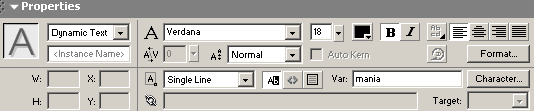
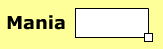
9. With the text tool still active create a new text box by clicking on the
stage again. In the properties panel set it as Dynamic Text, Verdana, size 18,
black (#000000), bold, left-aligned. Set the Var as mania.
10.
Now we need to resize the dynamic text box so the variable will fit in the text
box as it increments. Click in the text box again so it changes from the blue to
black outline. Mouse over the lower right corner of the text box until your
cursor changes to arrows and drag it to the right. You can accurately position
the text boxes with the arrow keys as long as they are highlighted (blue
outline). Click Edit => Deselect All.
Lock the Text layer. Save your work: File => Save.
Setting up the timeline to initialize and revaluate variables.
11.
Highlight the Text Layer and click the "Insert Layer" button at the bottom of
the timeline. Rename the new layer "Actions". On the Actions layer highlight
frames 2 and press F7. Then highlight frame 3 and hit f7 This will insert
a blank keyframe on each of these frames .
12. Open your Actions Panel and make sure you are in Normal Mode.
Now we will initialize the variable. Click in frame 1 of the Actions layer. Go
Actions => Variables => and double-click "set variable" to bring it into the
right side of the panel. Type in the Variable field "mania" without the quotes
and leave Expression unchecked. Type in the Value field "-25" without the quotes
and check the Expression box. The result is this: mania = -25; in the
Actions panel.
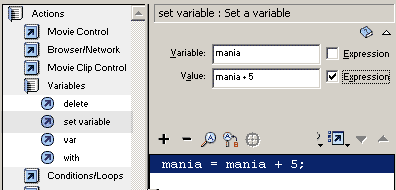
13. Click in frame 2 of the Actions layer. Actions => Variables =>
double-click "set variable" to bring it to the right side of the Actions
panel. Type in the Variable field "mania" without the quotes and leave
Expression unchecked. Type in the Value field "mania+ 5" without the quotes
and check the Expression box. The result is this: mania = mania+ 5;
in the Actions panel. By increasing and decreasing the number in the Value
field we can speed up or slow down the motion of the movie clip.
14.
Put your cursor in frame 3 of the Actions layers. In your Actions panel go
Actions => Movie Control => double-click "goto" the bring it in the right side
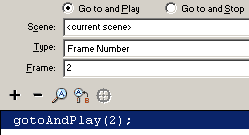
of the Actions panel. Select the radio button "Go to and Play".
Scene: current scene
Type: Frame Number
Frame: 2
The result is this in the Actions panel: gotoAndPlay(2);
Flash reads the main timeline from left to right. If we allowed the program to
play frame 1 again in essence we are re-initializing our variable and re-setting
the results. That is why we point it to frame 2: to avoid frame 1.
15. Lock the Actions layer. Save your work: File => Save. The scripting is
done for the mania variable for now. So let's click Control => Test Movie to see
the results. The
text box will display the progress of the variable mania.
Next tutorial you will script another variable on
the timeline with another dynamic text box to monitor the variables progress
over time.






 7.
Open your Properties Panel (Ctrl+F3) and add the Instance Name of the movie clip
to "coin1".
7.
Open your Properties Panel (Ctrl+F3) and add the Instance Name of the movie clip
to "coin1".
 Put
your cursor in frame 3 of the Coins layer and hit F5 to extend the timeline out
to that frame. Do the same in the background layer.
Put
your cursor in frame 3 of the Coins layer and hit F5 to extend the timeline out
to that frame. Do the same in the background layer.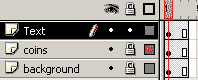 Setting
up Variable Monitoring:
Setting
up Variable Monitoring: 
 10.
Now we need to resize the dynamic text box so the variable will fit in the text
box as it increments. Click in the text box again so it changes from the blue to
black outline. Mouse over the lower right corner of the text box until your
cursor changes to arrows and drag it to the right. You can accurately position
the text boxes with the arrow keys as long as they are highlighted (blue
outline). Click Edit => Deselect All.
Lock the Text layer. Save your work: File => Save.
10.
Now we need to resize the dynamic text box so the variable will fit in the text
box as it increments. Click in the text box again so it changes from the blue to
black outline. Mouse over the lower right corner of the text box until your
cursor changes to arrows and drag it to the right. You can accurately position
the text boxes with the arrow keys as long as they are highlighted (blue
outline). Click Edit => Deselect All.
Lock the Text layer. Save your work: File => Save.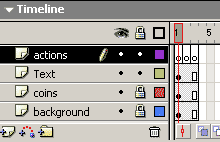 11.
Highlight the Text Layer and click the "Insert Layer" button at the bottom of
the timeline. Rename the new layer "Actions". On the Actions layer highlight
frames 2 and press F7. Then highlight frame 3 and hit f7 This will insert
a blank keyframe on each of these frames .
11.
Highlight the Text Layer and click the "Insert Layer" button at the bottom of
the timeline. Rename the new layer "Actions". On the Actions layer highlight
frames 2 and press F7. Then highlight frame 3 and hit f7 This will insert
a blank keyframe on each of these frames .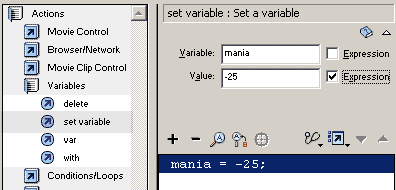
 14.
Put your cursor in frame 3 of the Actions layers. In your Actions panel go
Actions => Movie Control => double-click "goto" the bring it in the right side
of the Actions panel. Select the radio button "Go to and Play".
14.
Put your cursor in frame 3 of the Actions layers. In your Actions panel go
Actions => Movie Control => double-click "goto" the bring it in the right side
of the Actions panel. Select the radio button "Go to and Play".