Coin Movement: Getting Your Coin to Bounce of the Wall
This is an add on movie for the coin movies that teaches how to reflect the ball off the wall. This is done in ACtionscript 2, available in Flash MX 2004 and higher.
1. Open a new movie. The stage shoiuld be set at 550 wide by 400 high. The background can be whatever color.
2. Name layer1 Background. Click in Frame 1 of the background layer. Select your rectangle tool, set to black lines and no fill and draw a rectangle. Highlight the rectangle by double clicking it. In the Properties inpector set the rectanggle to height of 399 and width of 549. Open your align panel. With align panel set "to stage" Click the align vertical center and align horizontal center.
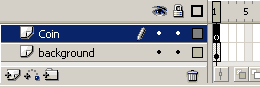
3. Add a layer.
Name this layer coin.
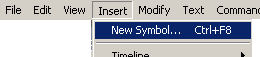
Click the insert menu and select New symbol.
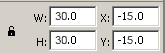
Name the symbol coin and select the property as Movie Clip. Inside the coin movie clip, Draw a circle filled with line black and fill another color. Draw a line through the circle. Highlight your circle. Use the property inspector to adjust the height and width to 30 pixels. Use the align tool set "to stage", align vertical and horizontal centers to stage. The registration point for this symbol is now in the center.
4. Click back to scene1. Click in frame 1 of the coin layer. Drag a copy of the coin from the library out onto the stage. Highlight the coin instance on the stage. Opent he property inspector and give it an instance name of coin_mc.
5. Insert a layer above both layers called Actions. Click in frame 1 of the actions. We now will script the moviement of our coin. Open your action script panel.
6. First we will initialize our variables and declear them as numbers. The speed of the ball will be determined by the change in _x and _y. We also will rotate the coin We declare the variable with the word var, and use the :Number so that flash will treate the values as numbers for our calculations and interpretation.
//speed of the coin acording to X, Y and rotation.
var xchange:Number = 10;
var ychange:Number = 10;
var rotation:Number = 20;
7. Next we will set the width of the stage to determin how far right the coin should go and the height of the stage to determinw how far down the coin should go.
/*declare stage width and height so it falls
15 pixels short of the full 550 wide and
400 pixels high.
15 pixels is equal to half the coin width. This will allow for the 15 pixels of the coin that falls to either side of the registration point.*/
var stagewidth:Number = 535;
var stageheight:Number = 385;
Test your script at this point for errors by clicking the blue check mark at the top of the action panel. If you have any errors in syntax they will show up now. We try to check syntax with each addition.
8. Now that all the variables are set, we will set up a function that repeats over and over. Even this is a one frame movie, we can set it up as an onEnterFrame event.
// function that will play over and over again.
_root.onEnterFrame = function() { }
Check your syntax by pressing the blue check.
9. Inside this function we first set up the movement of the coin. We do that by incrementing the _x and _y property of the movie clip, as well as the rotation of the clip. We put this information between the curly brackets {...}, Inser the following script between the function curly brackets.
// increment the _x position of coin by xchange
coin_mc._x += xchange; //increment the _y position or coin by ychange
coin_mc._y += ychange; //change the rotation angle position by rotaiton
coin_mc._rotation += rotation;
Check your syntax by clicking the blue checkmark. Now test your movie.
10. You will see in your movie that the coin will travel at a diagonal across the stage and continue pass the side. We need to go back to our scripts and set conditions for when it hits the edges of the canvas.
First, set up the framework for each condition, so that we tacklet them one at a time. The conditions will be as follows:
_x< left edge of stage
_y < top of stage.
_x > width of stage,
._y > height of stage
The conditional statements will be as follows:
//testing for boundries
//Testing for coin going too far to left. 15 pixels is the width of the coin.
if(coin_mc._x <15) {
} //testing for coin going too far up
else if(coin_mc._y <15) {
} //testing for coin going too far to right
else if(coin_mc._x> stagewidth) {
} //testing for coin going too far down
else if(coin_mc._y> stageheight) {
}
With the conditions set up in If...else if statements, we can check our syntax to insure that we made no mistakes. Since the actions are excluded, even if the statement is true, it has nothing to execute yet. This is the next step.
11. Now it is time to set the actions for each condition. When it is too low or high, we want it to reverse direction. We can simply reverse the directions of the coin by reversing the sign of the xchange and y change.
Add the conditions to stop the coin and then to reverse it's direction.
//testing for boundries
//Testing for coin going too far to left. 15 pixels is the width of the coin.
if(coin_mc._x <15) { /*reseting _x so it equals 15, then reverse the xchange by multiplying it by a negative 1 (-1) */
coin_mc._x = 15;
xchange * = -1;
} //testing for coin going too far up
else if(coin_mc._y <15) { /*reseting _y so it equals 15, then reverse the ychange by multiplying it by a negative 1 (-1) */
coin_mc._y = 15;
ychange *= -1;
} //testing for coin going too far to right
else if(coin_mc._x> stagewidth) { /*reseting _x so it equals stagewidth, then reverse the xchange by multiplying it by a negative 1 (-1) */
coin_mc._x = stagewidth;
xchange *= -1;
} //testing for coin going too far down
else if(coin_mc._y> stageheight) { /*reseting _7 so it equals stageheight, then reverse the xchange by multiplying it by a negative 1 (-1) */
coin_mc._y = stageheight;
ychange *= -1;
}
You should now check your syntax. The entire script in frame one of your movie should look like this:
//speed of the coin acording to X, Y and rotation.
var xchange:Number = 10;
var ychange:Number = 10;
var rotation:Number = 20;
/*declare stage width and height so it falls 15 pixels short of the full 550 wide and
400 pixels high. 15 pixels is equal to half the coin width. This will allow for the 15
pixels of the coin that falls to either side of the registration point.*/
var stagewidth:Number = 535;
var stageheight:Number = 385;
//function that will play over and over again.
_root.onEnterFrame = function() {
// increment the _x position of coin by xchange
coin_mc._x += xchange; //increment the _y position or coin by ychange
coin_mc._y += ychange; //change the rotation angle position by rotaiton
coin_mc._rotation += rotation;
//testing for boundries
//Testing for coin going too far to left. 15 pixels is the width of the coin.
if(coin_mc._x <15) {
/*reseting _x so it equals 15, then reverse the xchange by
multiplying it by a negative 1 (-1) */
coin_mc._x = 15;
xchange *= -1;
}
//testing for coin going too far up
else if(coin_mc._y <15) { /*reseting _y so it equals 15, then reverse the ychange by
multiplying it by a negative 1 (-1) */
coin_mc._y = 15;
ychange *= -1;
} //testing for coin going too far to right
else if(coin_mc._x> stagewidth) { /*reseting _x so it equals stagewidth, then reverse the xchange by
multiplying it by a negative 1 (-1) */
coin_mc._x = stagewidth;
xchange *= -1;
} //testing for coin going too far down
else if(coin_mc._y> stageheight) { /*reseting _7 so it equals stageheight, then reverse the xchange by
multiplying it by a negative 1 (-1) */
coin_mc._y = stageheight;
ychange *= -1;
}






 3. Add a layer.
  Click the insert menu and select New symbol.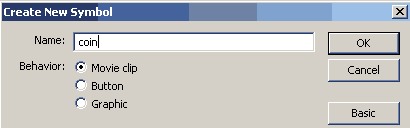

 Name the symbol coin and select the property as Movie Clip. Inside the coin movie clip, Draw a circle filled with line black and fill another color. Draw a line through the circle. Highlight your circle. Use the property inspector to adjust the height and width to 30 pixels. Use the align tool set "to stage", align vertical and horizontal centers to stage. The registration point for this symbol is now in the center.
 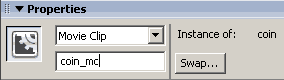 4. Click back to scene1. Click in frame 1 of the coin layer. Drag a copy of the coin from the library out onto the stage. Highlight the coin instance on the stage. Opent he property inspector and give it an instance name of coin_mc.
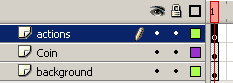 5. Insert a layer above both layers called Actions. Click in frame 1 of the actions. We now will script the moviement of our coin. Open your action script panel.
 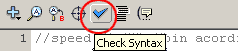 Test your script at this point for errors by clicking the blue check mark at the top of the action panel. If you have any errors in syntax they will show up now. We try to check syntax with each addition.