Custom Cursors can be handled by simply
hiding the windows cursor and then setting a movie clip to move with the
coordinates of the mouse. In this lesson we will draw a gun site which we
will then make into our cursor.
1.
Open up your project movie. Click the insert menu and select New symbol. Set the symbol to movie clip, name it scope and click ok.
2.
When your scope movie clip opens, click in frame 1. Drag the following object with a black stroke, weight 2, and no fill. Make sure they are not touching.p>
For the Large circle: Use the ecllipse tool while holding shift key down while drawing to make a perfect circle. Highlight and resize according to the property inspector to about 64 X 64
For the Small circle: Use the ellipse tool while holding shift key down while drawing to make a perfect circle. Highlight and resize according to the property inspector to about 38 x 38
For the horizontal line: Use the Line tool with shift held down to draw a horizontal line about 100 W.
Do the same for the vertical Line making it about 100 H.
3.
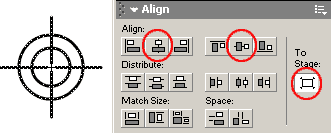
Use your arrow tool to marquee all the shapes to select them all. Click Modify=> Distribute to layers. Use your arrow tool to select all the shapes again. Open your align palette by clicking window=> align. Click the "to stage" button. Click the align horizontal centers and the align vertical centers.
All center points will snap to the center registration of this symbol.
4. Click back on scene 1. Add a layer above all the other artwork layer, but below the actions layer. Call this layer cursor. Drag a copy of the scope movie clip onto your stage. Place it off stage. Give it the instance name of scope in the properties inspector.
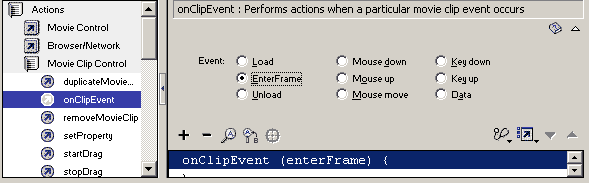
5. In frame2 of your cursor layer open your action panel. Click Actions=> Movie Clip Control=> onClipEvent. Select The event of Enter Frame from the events.
Extend your cursor layer frames to frame4. Your scope should be visible in frame2 and 3. Not 1 and 4.
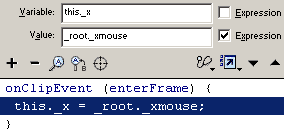
We will now set the position of _x and _y for the scope to follow the mouse coordinates by setting them equal. Choose Actions=> Variables=> Set variable. Click in the variable field. Click the target button and find your scope. Set to relative formula since this clip is directiing itself. Select "this" and click ok. Add a period followed by the property _x. The statement of this._x will set the _x of this to whatever we set the value equal to.
Click in the value field. Set the location of the cursor as _root and add a dot. Then find the property of _xmouse and add it to the script so the value become _root._xmouse . Check the box for expression.
6. Click back on the line this._x = _root._xmouse;. to add the y script underneath.
Click Actions=> Variables=> Set Variable. This time you need to set the variable to this._y. Set the value to _root._ymouse. Check the expression box.
(you can also copy your x script and paste it underneath and change the x to y).
7. Click back on your frame 1 and highlight your start button. Open your action panel. Click on the last script within the event handler which is start = getTimer();
Add a script by clicking Objects=> Movie=> Mouse=> Methods=> Hide. The script Mouse.hide(); will appear in the action panel.
8. Click in your ending frame of the Actions Layer. Select the action layer of your 4th frame, or stop game frame. Open the action panel. Click on the stop(); there. Select Objects=> Movie=> Mouse=> Methods=> Show. The script .Mouse.show(); will appear. Test your game! you are ready to go!!






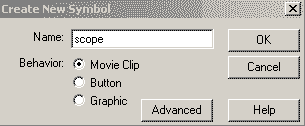 1.
Open up your project movie. Click the insert menu and select New symbol. Set the symbol to movie clip, name it scope and click ok.
1.
Open up your project movie. Click the insert menu and select New symbol. Set the symbol to movie clip, name it scope and click ok. 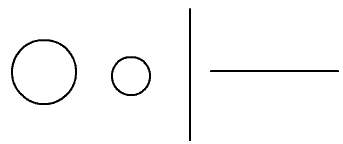 2.
When your scope movie clip opens, click in frame 1. Drag the following object with a black stroke, weight 2, and no fill. Make sure they are not touching.p>
2.
When your scope movie clip opens, click in frame 1. Drag the following object with a black stroke, weight 2, and no fill. Make sure they are not touching.p>
 3.
Use your arrow tool to marquee all the shapes to select them all. Click Modify=> Distribute to layers. Use your arrow tool to select all the shapes again. Open your align palette by clicking window=> align. Click the "to stage" button. Click the align horizontal centers and the align vertical centers.
3.
Use your arrow tool to marquee all the shapes to select them all. Click Modify=> Distribute to layers. Use your arrow tool to select all the shapes again. Open your align palette by clicking window=> align. Click the "to stage" button. Click the align horizontal centers and the align vertical centers.