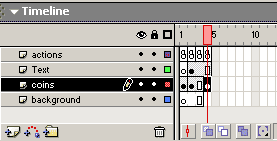
1. Open your coin movie. The main timeline has a background layer, a
coins layer, a text layer and an actions layer. Click and hold in frame1 of
the text layer and drag to frame 2, so that the text only occurs in frames
2-3. Do the same for the coins layer.
2.
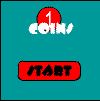
Click in frame 1 of the coins layer. Draw a rectangle on the stage.
Type the words Start over it. Highlight the contents of the frame and click
Insert=> convert to symbol. Name the symbol start, and give it the
properties of a button. You can also add artwork for the name of your game,
coins.
3.
Highlight the start button on the stage and open your actions panel. Click
Actions=> movie control=> Play. you will get an event handler and the play
action in the action panel.
4.
Click in frame 1 of the actions panel. Click on the last line of script in
the white script area. Select actions=> Movie Control=> Stop. Now the
movie stops on the tital page and will not progress until the button is
clicked.
5.
We want our game to be 60 seconds long. Click on the line above the stop in
frame one of the actions panel and add actions=> variables=> set variable.
Set the variable to time and the value to 60. Check the expression box for
the value.
6.
We want the timer to start when we hit the start button and enter the gaming
frames. We will get the starting time as a button action. Click on the start
button. Open the action panel. Click on the Play line above the end of the
event handler ending bracket. Choose the actions action=> variables=> set
variables. Set the variable by typing in start in the variable field. Click
in the value field and then go to Funtions=> getTimer(). check expression so
that it gets in the starting time.
7.
Click in frame 2 of the text layer. Add static text under your score text
that says TIME. Add a dynamic text box with the width of the score dynamic
box that has the variable time.
8. Click in frame 2 of the actions layer. We need to reset the time
variable in this frame. Open your actions panel. Click on the last line of
script. Click actions=> variables=> set variables. Set the variable for
time. Click in the value field.
We can take the current getTimer() value and subtract the initial
getTimer() which is stored as the variable start, to get the actual
time of play. The getTimer() value is in thousanths of seconds so you will
have to divide the value by 1000 to get seconds.
(getTimer() - start)/1000
This will produce a decimal number. To get even seconds we must round it.
Use ceil so that it will hit 0 exactly at 0 seconds.
Math.ceil((getTimer()-start)/1000)
This value must be subtracted from the total time in polay to give us the
time remaining, so the value statement progresses to
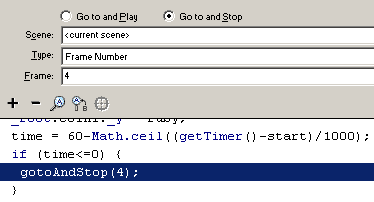
60-Math.ceil((getTimer()-start)/1000)
Here is how we will write it. click in the value field. type in the
number 60 for total time of play in the game. add the minus sign, -, and
then select objects=> core=> math=> methods=> ceil. Click in the brackets
for ceil. Add an additional bracket, and click function=> getTImer. add a
minus, -, and then start. Close the brocket for around the getTimer
statement and add the / to devide by, followed by the 1000. Check the
expression box.
9.
We must then test to make sure there is time left, or we will need to stop
the game. Click on the last line of script in the action panel. Click
actions=> Conditions and loops=> if. Type in time is less then or
equal to 0:
time <= 0
Click back on the if line in the script panel below. Add the action=>
movie control=> goto. Set the go to as gotoAndStop, frame 4.
10. We must add the ending game frame. Click in frame 4 of the action
layer. Hit F7 to add a blank keyframe. Open the actions panel and add the
action actions=> movie Control=> Stop.
11. Click in frame 4 of the text layer. Hit F5 to extext the score and
timer box out to frame 4.
12. Click in frame 4 of the coins layer and hit F7. Add the Game Over
Text using the type tool.






 2.
Click in frame 1 of the coins layer. Draw a rectangle on the stage.
Type the words Start over it. Highlight the contents of the frame and click
Insert=> convert to symbol. Name the symbol start, and give it the
properties of a button. You can also add artwork for the name of your game,
coins.
2.
Click in frame 1 of the coins layer. Draw a rectangle on the stage.
Type the words Start over it. Highlight the contents of the frame and click
Insert=> convert to symbol. Name the symbol start, and give it the
properties of a button. You can also add artwork for the name of your game,
coins.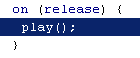 3.
Highlight the start button on the stage and open your actions panel. Click
Actions=> movie control=> Play. you will get an event handler and the play
action in the action panel.
3.
Highlight the start button on the stage and open your actions panel. Click
Actions=> movie control=> Play. you will get an event handler and the play
action in the action panel.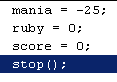 4.
Click in frame 1 of the actions panel. Click on the last line of script in
the white script area. Select actions=> Movie Control=> Stop. Now the
movie stops on the tital page and will not progress until the button is
clicked.
4.
Click in frame 1 of the actions panel. Click on the last line of script in
the white script area. Select actions=> Movie Control=> Stop. Now the
movie stops on the tital page and will not progress until the button is
clicked.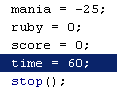 5.
We want our game to be 60 seconds long. Click on the line above the stop in
frame one of the actions panel and add actions=> variables=> set variable.
Set the variable to time and the value to 60. Check the expression box for
the value.
5.
We want our game to be 60 seconds long. Click on the line above the stop in
frame one of the actions panel and add actions=> variables=> set variable.
Set the variable to time and the value to 60. Check the expression box for
the value.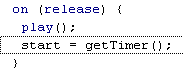 6.
We want the timer to start when we hit the start button and enter the gaming
frames. We will get the starting time as a button action. Click on the start
button. Open the action panel. Click on the Play line above the end of the
event handler ending bracket. Choose the actions action=> variables=> set
variables. Set the variable by typing in start in the variable field. Click
in the value field and then go to Funtions=> getTimer(). check expression so
that it gets in the starting time.
6.
We want the timer to start when we hit the start button and enter the gaming
frames. We will get the starting time as a button action. Click on the start
button. Open the action panel. Click on the Play line above the end of the
event handler ending bracket. Choose the actions action=> variables=> set
variables. Set the variable by typing in start in the variable field. Click
in the value field and then go to Funtions=> getTimer(). check expression so
that it gets in the starting time. 7.
Click in frame 2 of the text layer. Add static text under your score text
that says TIME. Add a dynamic text box with the width of the score dynamic
box that has the variable time.
7.
Click in frame 2 of the text layer. Add static text under your score text
that says TIME. Add a dynamic text box with the width of the score dynamic
box that has the variable time.
 9.
We must then test to make sure there is time left, or we will need to stop
the game. Click on the last line of script in the action panel. Click
actions=> Conditions and loops=> if. Type in time is less then or
equal to 0:
9.
We must then test to make sure there is time left, or we will need to stop
the game. Click on the last line of script in the action panel. Click
actions=> Conditions and loops=> if. Type in time is less then or
equal to 0: