1.
Open your coin movie. Double click on the coin movie clip on the main stage.
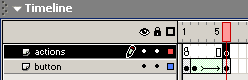
The current timeline of the coin1 movie clip has 6 frames, The first frame
has the button in it and a stop. The additional frames are for the breaking
up of the coin after it was clicked.
To make the movie more interesting, we can reposition the coin after it
breaks up and returns to the frame 1. The _x position is regulated by the
variable mania, and the _y variable is regulated by the variable ruby.
Click in frame 6 of the actions layer of the movie clip. Hit your F7 key
to insert a blank keyframe. Highlight the frame and open your action panel.
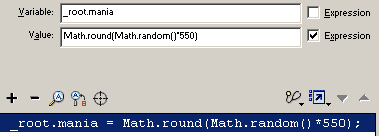
2. First we need to reset mania using set variable. Click Actions=>
variables=> set variable. In the variable field type in the path to the
variable <dot> mania, or _root.mania. Click in the value field. We need to
generate a random whoile number for x between 0 and 550, or the width of the
stage. To do this we will Use round to generate a whole number. Click
Objects=> core=> math=> methods=> round. Click in the bracket for the
parameters for Math.round. Add the script for random by going objects=>
core=> math=> method=> random. After this is placed in the brackets we need
to add the multiplier to set the random number between 0 and 550, by adding
* 500. Check expression so it is calculated. The result will look like this:
_root.mania = Math.round(Math.random()*550);
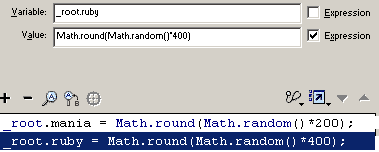
3. To reset ruby we use set variable again. Click back on your bottom
script in the script panel so the new script goes under the last. Click
Actions=> variables=> set variables. In the variable field type in the path
to the variable <dot> ruby, or _root.ruby. Click in the value field. Click
Objects=> core=> math=> methods=> round. Click in the bracket for the
parameters for Math.round. Add the script for random by going objects=>
core=> math=> method=> random. After this is placed in the brackets we need
to add the multiplier to set the random number between 0 and 400, by adding
* 400. Check expression so it is calculated. The result will look like this:
_root.ruby = Math.round(Math.random()*400);
The coin will now change position after it breaks up.
The next tutorial sets up starting and ending screens and a time limit.






 To make the movie more interesting, we can reposition the coin after it
breaks up and returns to the frame 1. The _x position is regulated by the
variable mania, and the _y variable is regulated by the variable ruby.
To make the movie more interesting, we can reposition the coin after it
breaks up and returns to the frame 1. The _x position is regulated by the
variable mania, and the _y variable is regulated by the variable ruby.