1. Open your movie project file. Click file=> import to library. Browse
your hard drive for the saved sound file, breaking_glass.wav.
2.
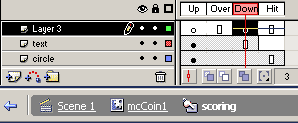
Double click on the coin movie clip on the stage. With frame 1 visible,
Double click on the coin button to open the button timeline. Add a layer and
call it sound. Click in frame 3, the Down frame of the button on the sound
layer. Hit your F7 key to add a blank keyframe.
3. While the down frame of the sound layer is highlighted open your
property inspector. Select the glass_breaking.wav sound from the sound drop
down menu. Set the sound to event. Click the edit envelope
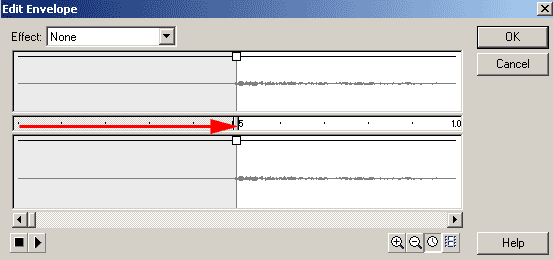
4. The Edit Envelope dialog box allows us to edit this wave so that we
can start the sound where the actual audible part begins as well as adjust
volume levels. The volume levels are good on this wav so we will just adjust
the starting point of the wav. In the edit envelope, the timeline bar that
separates the left and right channels is where we will make out adjustments.
Click and drag the left side of the time line bar towards the right up to
where you see the sound waves appear, about 0.5 seconds into the wave
sound. When you drop the bar, a gray overlay appears over the first half
second of both channels of the sound, as well as the timeline. Click ok.
5. Test your movie. Your coin should play the sound as you press on a
coin.






 2.
Double click on the coin movie clip on the stage. With frame 1 visible,
Double click on the coin button to open the button timeline. Add a layer and
call it sound. Click in frame 3, the Down frame of the button on the sound
layer. Hit your F7 key to add a blank keyframe.
2.
Double click on the coin movie clip on the stage. With frame 1 visible,
Double click on the coin button to open the button timeline. Add a layer and
call it sound. Click in frame 3, the Down frame of the button on the sound
layer. Hit your F7 key to add a blank keyframe.