1. Open a new movie that is 550 wide by 400 high. Set the background
color to green.
2.
Select your type tool from the toolbox and select the WingDings2 font. Type
in the following:
j and hit enter
vl and hit enter
xnz and hit enter
p|r~ and hit enter
3. Highlight your texty box with your arrow tool and adjust the text
properties on the properties inspector to have
Font size = 69
color = black
Character Spacing = (-11)
Format=> Line spacing = (-27)
4. Click Modify=> break apart. This will break the individual symbols
into their own text box. You may want to one by one highlight each text box
with your arrow tool and set the color of each circle different.
5. Click on the number 1 symbol at the top. Press F8 to convert
this to a symbol. Name the symbol number 1, and set it as a graphic with the
registration in the center.
6. Do the same as number 5 for each of the symbols on the stage, naming
then the number within the symbol and setting as graphic with center
registration point.
7. Click on frame 1 to highlight all of the text boxes on frame 1. Click
Modify=> Distribute to layers. Each text box will then be placed on its own
layer, and the layers .
8. Click drag to highlight frame 20 from the top of your layers,
right under the layer 1 to the bottom of your layers. Once you have them
highlighted, hit your F6 key to insert a keyframe at frame 20.
9.
Click drag to highlight frame 30 from the top of your layers, right
under the layer 1 to the bottom of your layers. Once you have them
highlighted, hit your F6 key to insert a keyframe at frame 30.
10. In Frame 30, Drag each symbol to the nearest edge of the stage and
off the stage.
11.
Click drag through all the layers to highlight one column from top to bottom
again between frames 20 and 30.
12. Open your properties inspector and set the property of tween to motion.
Set
Rotate to Clockwise
3 times.
Easing to +100
13. Click File=> import to library. Import your Poolballhit.wav that you
downloaded above.
14. On layer 1, click in frame 21. hit your F7 key to insert a blank
keyframe. While the frame is highlighted, open the properties inspector.
Click the drop down box under sound and select your poolballhit.wav. Set the
sound to stream. Click in frame 30 and hit F5 to extend the layer 1 out to
30.








 9.
Click drag to highlight frame 30 from the top of your layers, right
under the layer 1 to the bottom of your layers. Once you have them
highlighted, hit your F6 key to insert a keyframe at frame 30.
9.
Click drag to highlight frame 30 from the top of your layers, right
under the layer 1 to the bottom of your layers. Once you have them
highlighted, hit your F6 key to insert a keyframe at frame 30. 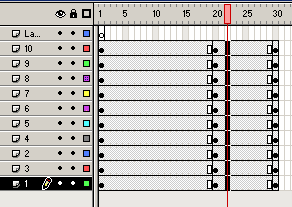 11.
Click drag through all the layers to highlight one column from top to bottom
again between frames 20 and 30.
11.
Click drag through all the layers to highlight one column from top to bottom
again between frames 20 and 30. 