In this tutorial, we will create 3 buttons, each will add a different
amount to the score.
1. Open a new movie, white background, 550 wide by 400 high. Rename layer
1 buttons.
2.
Select your ellipse tool. Set your fill to red, and stroke to black. Draw an
Ellipse while holding your shift key down to constrain the proportion of the
ellipse to a circle.
3.
Use your move tool to double click on the fill of the circle to select the
fill and stroke of the circle. Click Insert=> convert to symbol. Call the
symbol scoring and set the properties of the symbol to a button. Open this
symbol Lock your layer, add a new layer for text. Select your text
tool set to a black static font and type in the number 1.
4.
Click back on your scene 1 to get to your main timeline. Open your library
by hitting F11 or window=> library. Right click on the scoring symbol in the
library and select duplicate symbol. Name the new symbol scoring+5. Right
click on the new symbol scoring+5 and duplicate it and set the name to
scoring+10..
5. Open the Scoring+5 button from the library and edit your text so that
you delete the 1 and replace it with the number 5. Open the scroing+10
button and edit the text sop that you remove the number and replace it with
10.
6. Drag out a copy of scoring+5 and Scoring+10 to your stage. Click on frame
5 of the main timeline and hit F5. Lock this layer.
7. Back at scene1, the main timeline, add a layer. Set the layer name to
actions. click in frame one and open the action panel. Here we will
initialize our variable on the main timeline or _root. Click Actions=>
Variables=> Set var from the action toolbox on the left. Double click on Set
Var. to move the script to the right into the actions panel.
8. In the actions panel we need to set the variable parameters. Set
the following:
variable: score
value: 0
value has expression checked.
9.
Click in frame 2 of the actions layer, hit F7 and click in frame 5 and hit
F7. Since we do not want to reset the score variable as the movie loops back
to 1, we can either add a stop in frame 5 or a goto statement to bring it
back to frame 2 so it misses the variable reset. Make frame 5 active and
open your actions panel.
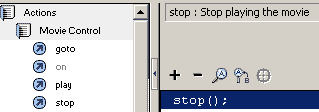
Click Actions=> Movie Control=> Stop. Lock the actions layer.
10. Click on your buttons layer and add a layer. Call this layer text.
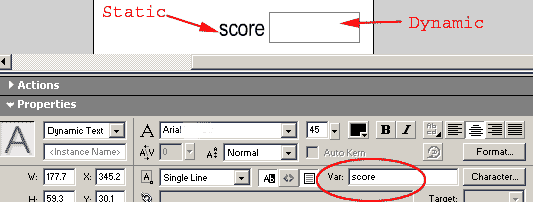
Select your text tool and type in the word Score: as static text. Then Add
another text box after you deselect that one and add a Dynamic text box
where the var is score. This dynamic text box will capture our variable and
display the output. Lock the text layer.
11. Unlock the buttons layer. Highlight the instance of scoring using
your move tool. Name the instance on the property inspector one. Click on
the instance of scoring+5 and name the instance five. Click on the
scoring+10 button and name the instance ten.
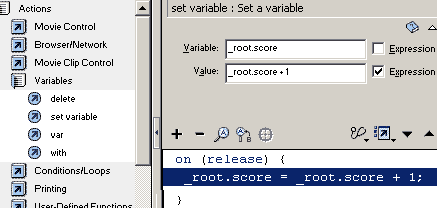
12. Click on the instance called one and open your action script panel.
We will set an action script to generate a new value of our variable score.
Click Actions=> variables=> Set variable. Set the variable to _root.score so
it refers to the score on the main timeline. Set the value to _root.score +
1 and check expression.
13. Add a similar script to the other two buttons, changing the value you
add to _root.score to +5 and +10..
14. Test your movie. When you click on the 1 button you add 1 to the
score. When you click on the 5 button, you add 5 to the score. When you
click on the 10 button, you add 10 to your score.
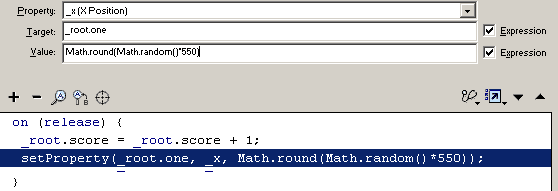
15. Now we will add some _x and _y position scripts to scramble the
buttons with each click. Use your move tool to select the one symbol. Open
the action panel. Click on the script line where it says _root.score = _root.score
+ 1;. Now you can add a script so that it will occur in the event handler.
Click Actions=> Movie Clip Control=> Set Property and double click. for
the parameters for this script set the following:
property to _x,
Target _root.one (use the target button to search for it)
value : Math.round(Math.random()*550)
Check both expression boxes.
16. While the set property script is active or highlighted in the action
script panel, right click on it and select copy. Right click again on it and
select paste. On the new line of script, change the target to _root.five.
Paste again and change the target to _root.ten.
17. Click drag over the three setProperty lines in the action scripot
pane to highlight them. Right click copy. Click on the last set Property
script on this button and right click to select paste. You have duyplicated
the setproperty scripts. Run through the last three scripts, changing the
property of _x to _y AND change the multiplier from 550 (width of the stage)
to 400 to height of the stage.
18. Copy all the set property scrips on this one button. Highlight
another button, highlight the Set Var script line. Right click and
select Paste Do this to the last button so all three buttons will cause all
the buttons to change position or scramble when one is clicked.






 2.
Select your ellipse tool. Set your fill to red, and stroke to black. Draw an
Ellipse while holding your shift key down to constrain the proportion of the
ellipse to a circle.
2.
Select your ellipse tool. Set your fill to red, and stroke to black. Draw an
Ellipse while holding your shift key down to constrain the proportion of the
ellipse to a circle.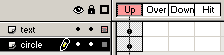 3.
Use your move tool to double click on the fill of the circle to select the
fill and stroke of the circle. Click Insert=> convert to symbol. Call the
symbol scoring and set the properties of the symbol to a button. Open this
symbol Lock your layer, add a new layer for text. Select your text
tool set to a black static font and type in the number 1.
3.
Use your move tool to double click on the fill of the circle to select the
fill and stroke of the circle. Click Insert=> convert to symbol. Call the
symbol scoring and set the properties of the symbol to a button. Open this
symbol Lock your layer, add a new layer for text. Select your text
tool set to a black static font and type in the number 1.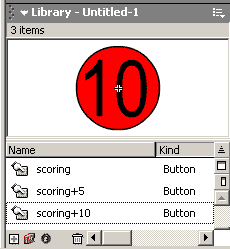 4.
Click back on your scene 1 to get to your main timeline. Open your library
by hitting F11 or window=> library. Right click on the scoring symbol in the
library and select duplicate symbol. Name the new symbol scoring+5. Right
click on the new symbol scoring+5 and duplicate it and set the name to
scoring+10..
4.
Click back on your scene 1 to get to your main timeline. Open your library
by hitting F11 or window=> library. Right click on the scoring symbol in the
library and select duplicate symbol. Name the new symbol scoring+5. Right
click on the new symbol scoring+5 and duplicate it and set the name to
scoring+10..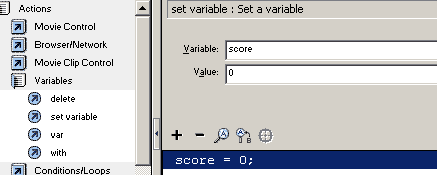
 9.
Click in frame 2 of the actions layer, hit F7 and click in frame 5 and hit
F7. Since we do not want to reset the score variable as the movie loops back
to 1, we can either add a stop in frame 5 or a goto statement to bring it
back to frame 2 so it misses the variable reset. Make frame 5 active and
open your actions panel.
9.
Click in frame 2 of the actions layer, hit F7 and click in frame 5 and hit
F7. Since we do not want to reset the score variable as the movie loops back
to 1, we can either add a stop in frame 5 or a goto statement to bring it
back to frame 2 so it misses the variable reset. Make frame 5 active and
open your actions panel.