|
 |
||||||||||||
 |
 |
||||||||||||

|

Creating Simple Text Effects using Swish v 2.0By: CivicCX This tutorial is designed to teach you how to make simple flash text effects using Swish v 2.0
1) The first step in creating easy Text Animations is to open up a new document is Swish. 2) When on a blank screen go up to the top of the
screen where it has the little "T" and press this down.
3) This will insert a Window that says Text on the top of it. Here you will be able to type in the text you want displayed and change the font, and or size of the text which are going to be displayed. When finish adjusting the text size and font, click okay or press enter to insert it into your workspace area.
5) On the menu that appears below it chose the option that says Effect. 6) Another menu will then appear once more. Scroll over on that window to any effect you want to insert. (Try using Transform for Starters) 7) After selecting Transform a dialog box will appear, click close on this box. 8) You will now have you effect inserted into the text. To view the effect choose play from the toolbar on the top of your screen, it should look like the one shown below.
9: Finished Project
Note: You can combined any of the other effects, you do not strictly have to use "Transform"
"Building The Web Into a Nicer Place -- One Site At A Time"
|
|
|
||||||||||
| |
|||||||||||||

|
|
||||||||||||
 |
|
||||||||||||





 4)
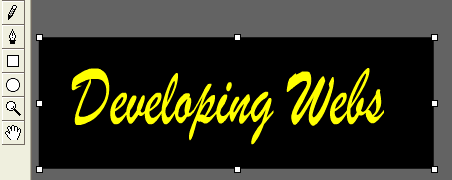
The next step is to highlight the text which you entered (We used "Developing
Webs) and move you cursor up to the top of the screen where the main toolbar is
that says File, Edit, View, Ect. On that same toolbar you will see one
that says Insert. Click on this and a menu will appear below it.
4)
The next step is to highlight the text which you entered (We used "Developing
Webs) and move you cursor up to the top of the screen where the main toolbar is
that says File, Edit, View, Ect. On that same toolbar you will see one
that says Insert. Click on this and a menu will appear below it.